
Search and shortcuts
Search messages
Section titled “Search messages”Type at least two characters into the Search box at the top. Results open in the right pane, newest first, with the matching words highlighted.
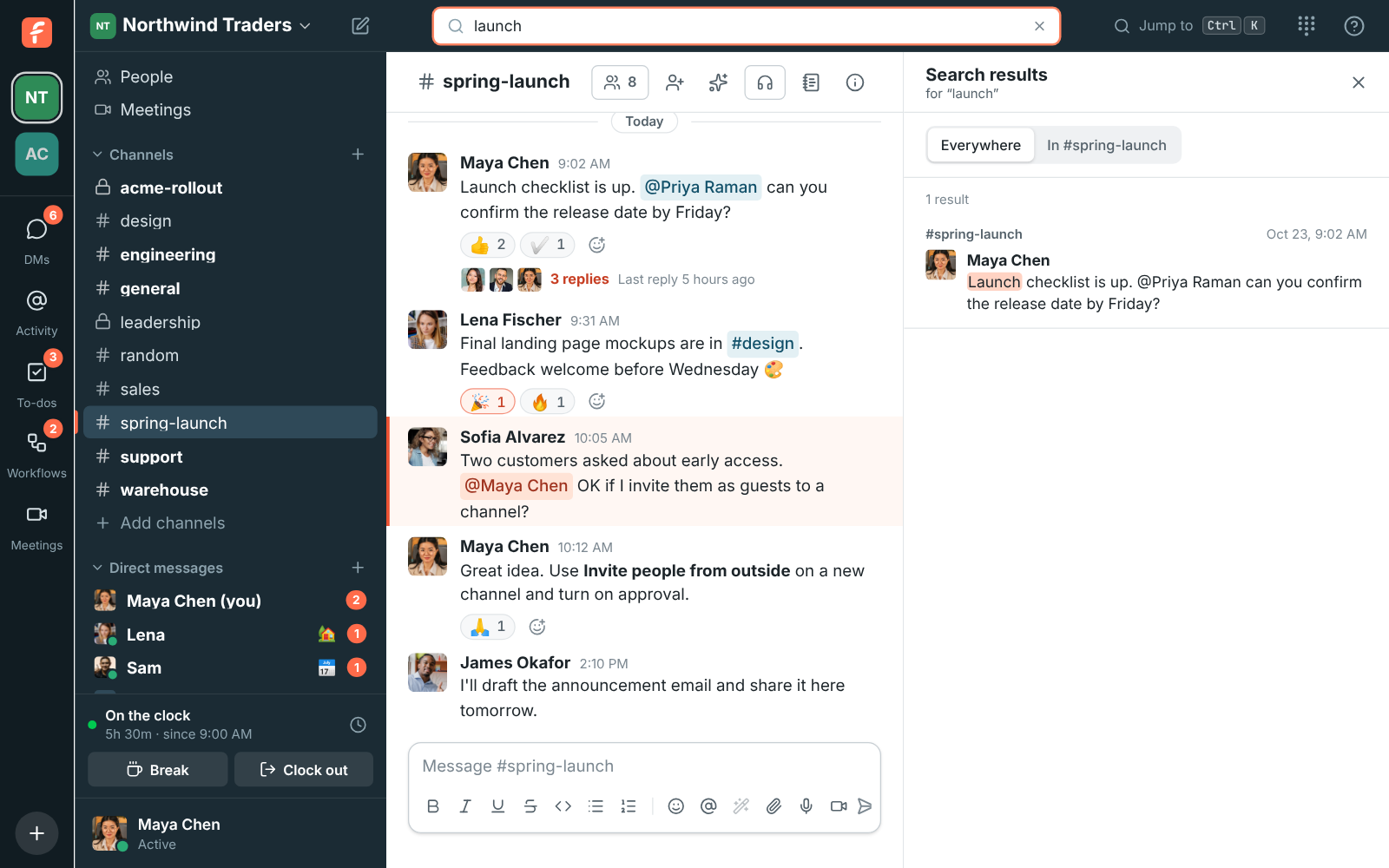
- Choose Everywhere, or In #channel to search only the conversation you have open.
- Click a result to jump to that message in its conversation.
- Search covers every message you can see: public channels, your private channels and your DMs. You see the 50 newest matches.
- Press Esc in the search box to clear it.
What counts as a match
Section titled “What counts as a match”You don’t need to type whole words. Search finds what you type anywhere in a message, in any case, so list finds “Shortlist” and “Launch checklist”, and voice finds “invoice”.
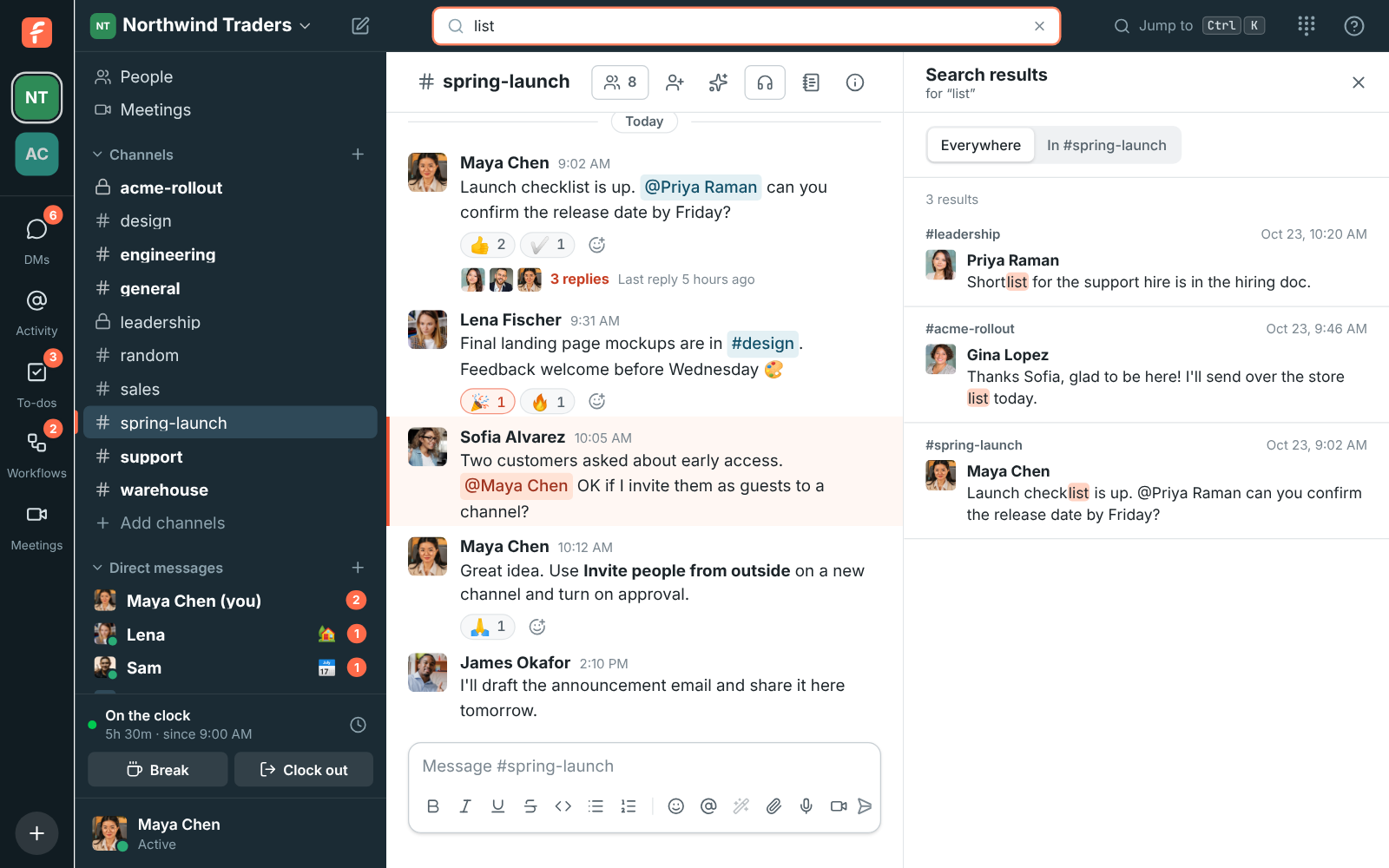
- Type several words to narrow it down: a message has to contain every one of them, in any order.
- Words of one or two letters, like q3 or ac, match the start of a word.
- Search also looks at the names of shared files, so report finds a message with Quarterly-Report.pdf attached, and at the text of app and webhook messages.
- Punctuation is ignored: q3-report searches for “q3” and “report”.
Filters
Section titled “Filters”Add filters to what you type to narrow the results down. Use them on their own, or with words:
| Filter | Finds messages |
|---|---|
from:@maya |
Written by Maya. from:me finds your own. |
in:#sales |
In #sales |
after:2026-10-01 |
From October 2 on (the day you type isn’t included) |
before:2026-10-31 |
Up to October 30 |
on:2026-10-20 |
Written on October 20 |
has:file |
With a file attached |
Put a name with spaces in quotes: from:"Maya Chen". A first name is enough when only one person
has it. The filters you used show as chips above the results, so you can check what was searched,
and a name that matches nobody is crossed out.
Ask Freesbe
Section titled “Ask Freesbe”Type a question into the search box, like When is the spring launch? or What did Priya say about pricing?, and Ask Freesbe answers it at the top of the results. It reads the messages you can see, writes a short answer, and puts a numbered link after each sentence. Click a number, or a source under the answer, to jump to the message it came from.
- A question gets an answer straight away: anything ending in a question mark, or starting with who, what, when, where, why, how and the like. For anything else, click Ask in the Ask Freesbe box.
- You can ask in your own language. Freesbe also searches for the words in English, so a question in Spanish finds an answer written in English, and the other way round.
- Plain words work as filters. Files Dana shared in #sales last week looks in #sales, for messages from Dana with files, last week. Ask Freesbe shows what it understood as chips, and Search with these filters runs the same search with the filters typed out, so you can see every match.
- Choose In #channel above the results to ask about the conversation you have open only.
What it can and can’t see
Section titled “What it can and can’t see”- Ask Freesbe only reads messages you can already see: public channels, your private channels and your DMs. Someone else asking the same question can get a different answer.
- Every sentence has to come from a message. When the messages it finds don’t answer the question, it says so and shows what came closest, instead of guessing.
- The answer is only for you. Nobody sees that you asked, and nothing is posted.
- It can still get things wrong, or miss that something changed later. Check the sources before you act on an answer.
- Each question counts as one AI request toward your workspace’s monthly allowance (see AI summaries, translations and writing help). Guests can search, but can’t use Ask Freesbe. If an admin turns AI features off, the Ask Freesbe box goes away and search works as before.
Jump to a conversation
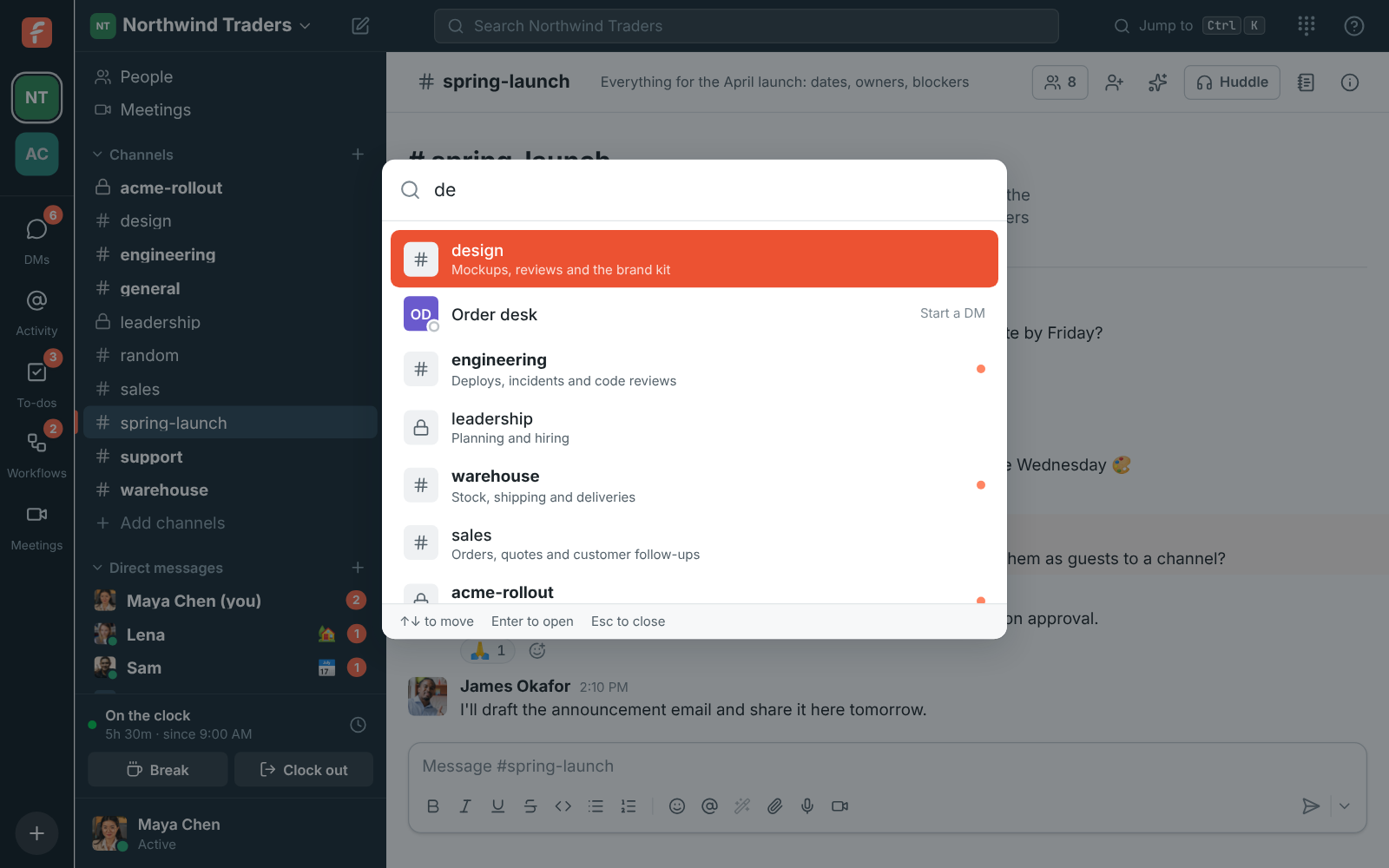
Section titled “Jump to a conversation”Press Ctrl+K (⌘+K on a Mac), or click Jump to a conversation in the top bar. Start typing a channel or person’s name, move with ↑ ↓, and press Enter to open it. Unread conversations show a dot.
Keyboard shortcuts
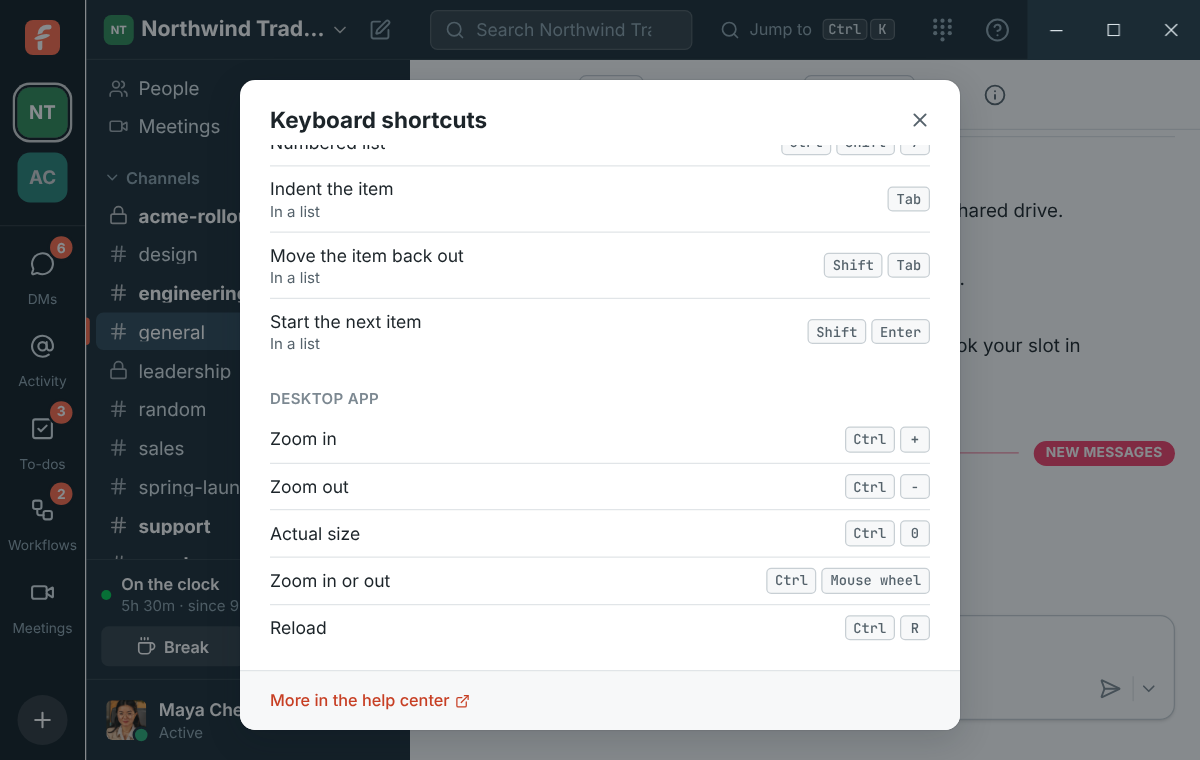
Section titled “Keyboard shortcuts”Press Ctrl+/ (⌘+/ on a Mac), or choose ? → Keyboard shortcuts in the top bar, to see this list inside the app.
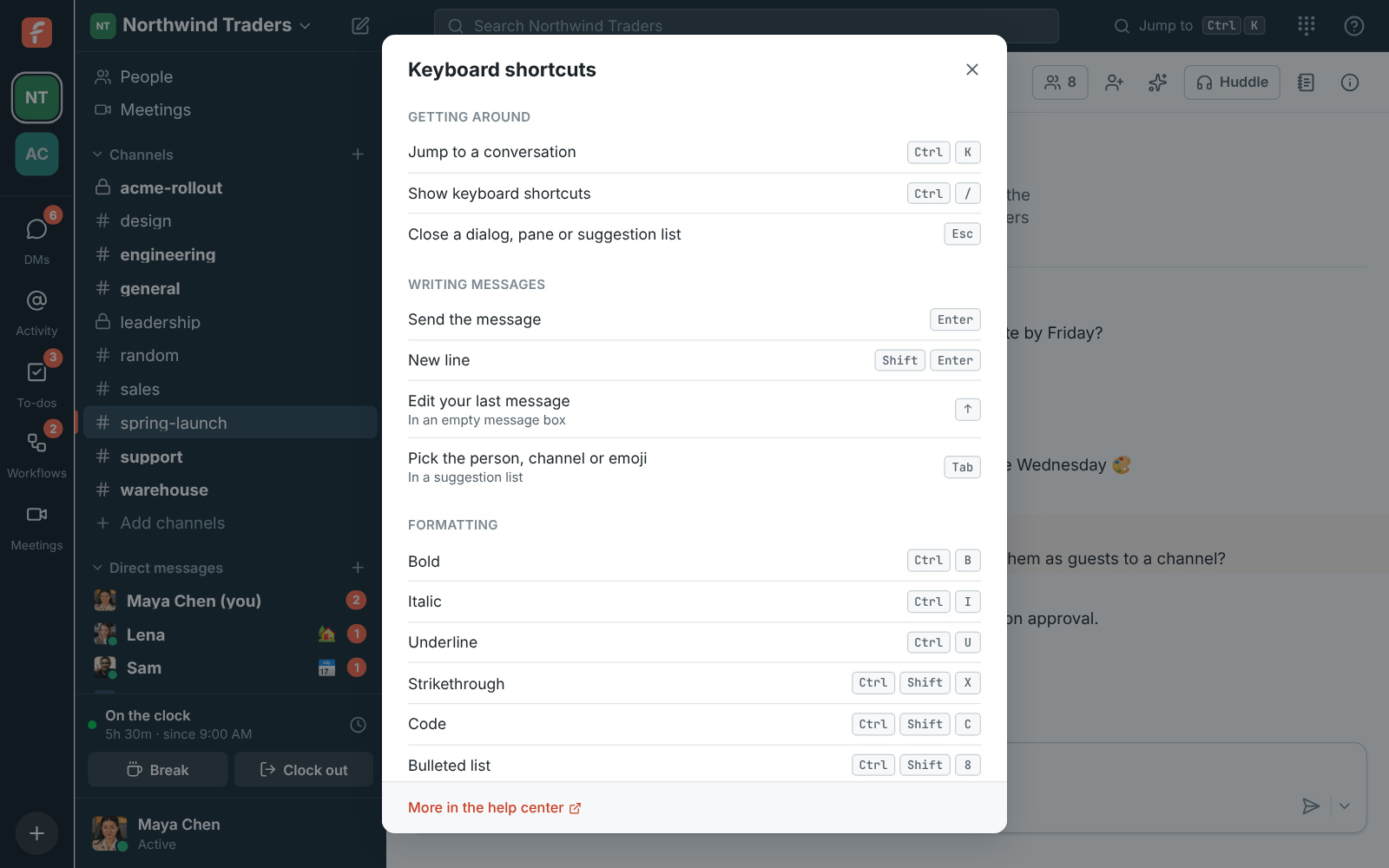
| Shortcut | What it does |
|---|---|
| Ctrl/⌘+K | Jump to a conversation |
| Ctrl/⌘+/ | Show keyboard shortcuts |
| Ctrl/⌘+F in settings | Search Workspace settings or Preferences |
| Enter | Send the message |
| Shift+Enter | New line |
| ↑ in an empty message box | Edit your last message |
| Ctrl/⌘+B | Bold |
| Ctrl/⌘+I | Italic |
| Ctrl/⌘+U | Underline |
| Ctrl/⌘+Shift+X | Strikethrough |
| Ctrl/⌘+Shift+C | Code |
| Ctrl/⌘+Shift+8 | Bulleted list |
| Ctrl/⌘+Shift+7 | Numbered list |
| Tab / Shift+Tab in a list | Indent the item, or move it back out |
| Shift+Enter in a list | Start the next item |
| Tab or Enter in a suggestion list | Pick the highlighted person, channel or emoji |
| Esc | Close a dialog, pane or suggestion list |
In the desktop app
Section titled “In the desktop app”The desktop app adds its own keys, and lists them at the end of the shortcuts dialog. In a browser, the browser’s own zoom and reload keys do the same.
| Shortcut | What it does |
|---|---|
| Ctrl/⌘++ or = | Zoom in |
| Ctrl/⌘+- | Zoom out |
| Ctrl/⌘+0 | Actual size |
| Ctrl/⌘+mouse wheel | Zoom in or out |
| Ctrl/⌘+R or F5 | Reload |
See Zoom in and out for more.
The People directory
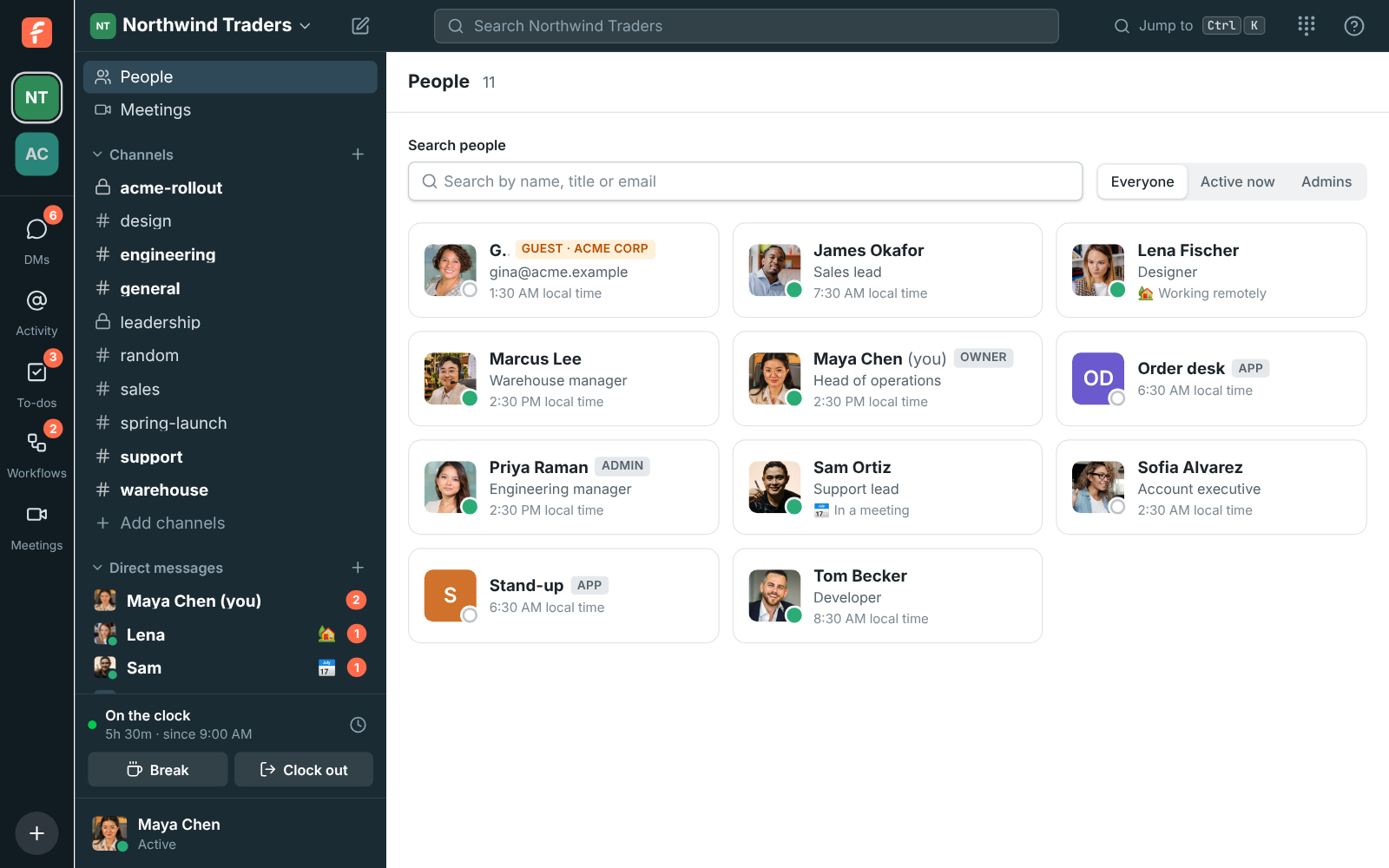
Section titled “The People directory”People in the sidebar lists everyone in the workspace with their title, department, location and status. Filter by Everyone, Active now or Admins, pick a Department, search by name, title, department, location or email, and click someone to see their profile or send them a message.
Answers come from the Freesbe guides and are written by AI, so check the linked guide before relying on one. Please don't include personal details such as emails or passwords.