
Workspace settings
Admins and owners manage the workspace in Workspace settings: open the workspace menu (the workspace name at the top of the sidebar) and choose Workspace settings. Other people can open it but can’t change anything.
The same settings are also on a full screen in the browser, in the Admin Center at manage.freesbe.net: choose Admin Center in the workspace menu.
Setup, security, logs and billing are managed in the Admin Center. In the app, those tabs show Open in the Admin Center, which opens the same page there: Custom domain, Email domains, Profile fields, Punch clock, every Security & compliance tab, every Integrations & apps tab and every Billing tab (Plan still shows your plan, with an Upgrade button). The paths below work in both places. See Managed in the Admin Center.
The list on the left has seven groups. Each one opens with tabs across the top, so every page is short:
| Group | Tabs |
|---|---|
| General | Workspace (name, logo, your role and the workspace ID), Data region, Messages (who can edit and delete messages, read receipts, the log of what admins deleted), AI & workflows and Custom domain |
| People | Members (roles, editing profiles, deactivating and reactivating people), Invites, Email domains (people at your company join without an invite), Profile fields (work details and spreadsheet import) and Punch clock |
| Security & compliance | Sign-in (single sign-on and multi-factor authentication), File types, Remote control, Audit log, Security activity and Export data |
| Calls & meetings | Recordings (recordings, transcripts and AI notes) and Waiting room (alerts and music on hold) |
| Phone | Phone system (turn on Freesbe’s phone system, or connect your own sip.io account), Numbers (buy numbers and choose who each one rings) and Messaging (texts and WhatsApp messages to your numbers, answered in a channel) |
| Integrations & apps | Integrations (by category: Customer inbox, Finance, Calendar, Automation, Support and CRM, with HubSpot, Salesforce and Pipedrive), Apps, AI agents, Webhooks and Import from Slack |
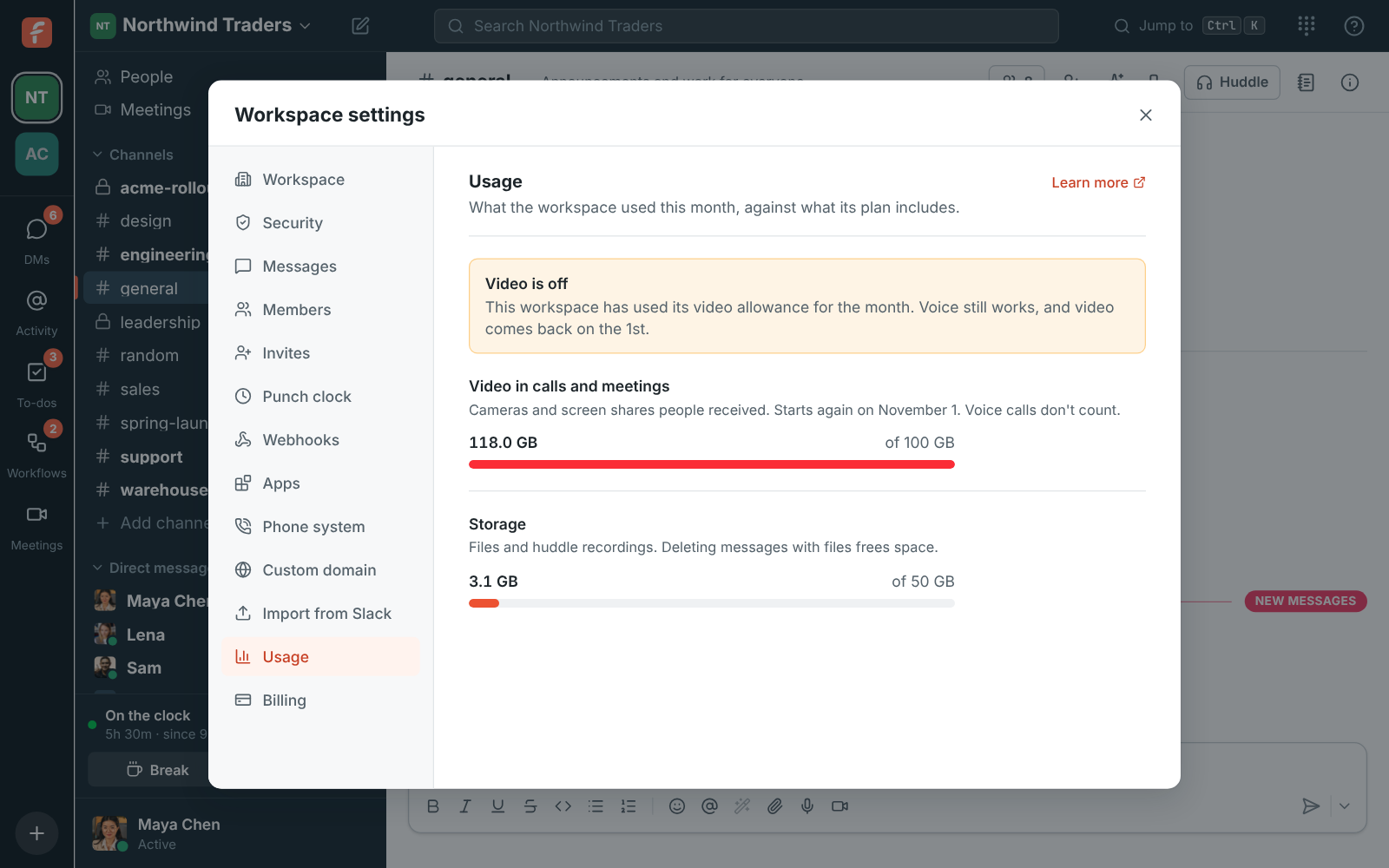
| Billing | Plan (your plan and people against its limit), Plans, Add-ons, Invoices and Usage (this month’s video, storage and counts against the workspace’s limits) |
A group opens on the tab you had open last. Below, a path like Security & compliance → Sign-in means the group, then the tab.
| Section | What’s there |
|---|---|
| Workspace | Name, logo, recordings and notes, your role and the workspace ID |
| Security | Single sign-on, multi-factor authentication, remote control and which file types people can share |
| Audit log | What owners and admins changed, who did it, when and from where |
| Messages | Who can edit and delete messages, and a log of the messages admins deleted |
| Members | Roles, editing profiles, deactivating and reactivating people |
| Profile fields | Work details on everyone’s profile (department, location, manager, phone, your own fields) and spreadsheet import |
| Invites | Email invites, invite links, revoking them |
| Punch clock | Turning the time clock on, who it covers, timesheets and export |
| Webhooks | Incoming and outgoing webhooks |
| Apps | Your own integrations, each with a bot and a token limited to its scopes |
| Integrations | Tools your team already uses, by category. Customer inbox: a chat on your website and a shared email address. Finance: Mercury, Stripe and Airwallex payment alerts, Kraken, crypto wallets, and Zoho Books and Zoho Invoice. Calendar: Google Calendar and Outlook, and Freesbe meetings in Outlook and Google Calendar. Automation: Zapier, Make and n8n. Support: Zendesk, Zoho Desk and Freshdesk. CRM: HubSpot, Salesforce, Pipedrive and Zoho CRM. Recruiting: Zoho Recruit. Monitoring: Zabbix, Grafana, Alertmanager, PagerDuty, Opsgenie and Datadog |
| Phone system | Freesbe’s own phone system, numbers and texts, or connecting your sip.io account |
| Export data | Download the workspace’s messages and files as a zip. See Export your data |
| Usage | This month’s video and storage against the workspace’s limits |
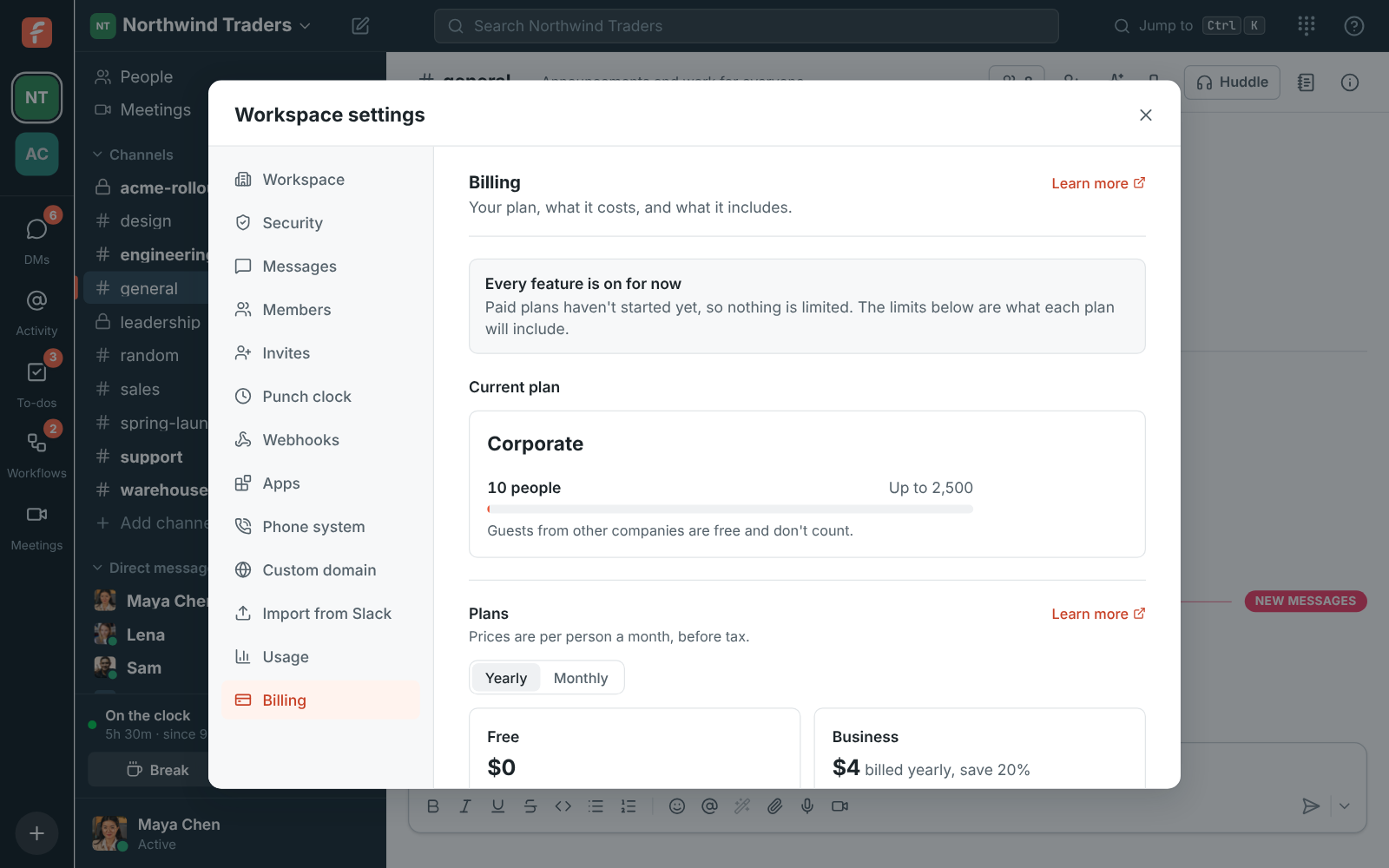
| Billing | The plan, how many people count toward it, prices monthly and yearly, and invoices |
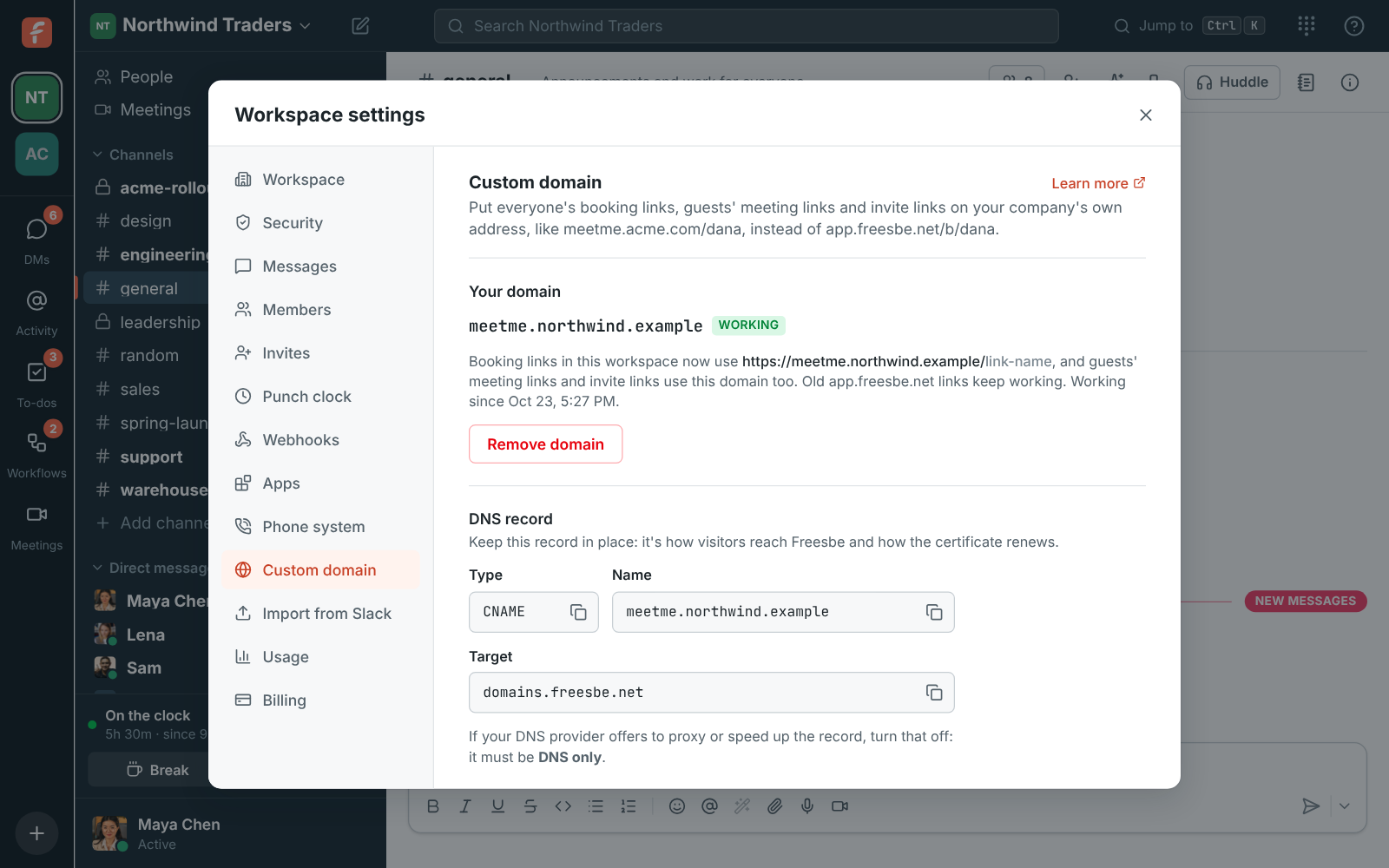
| Custom domain | Your own address for booking, meeting and invite links, like meetme.acme.com/dana (Corporate and Enterprise) |
Find a setting
Section titled “Find a setting”Type in Search settings at the top of the list to find a section or a setting inside one. It looks through section names, the headings in each section, the switches and options under them and product names, so record finds Recordings, sso finds Single sign-on hubspot, salesforce, pipedrive and zoho find the CRM integration zendesk, zoho desk and freshdesk find Support, zoho books, kraken and bitcoin find Finance. Search works in the language Freesbe is in, and English words work too.
Click a result, or press Enter for the first one (↑ and ↓ move between them). Freesbe opens it, scrolls to the setting and highlights it for a moment, opening its group and tab. Under each result you see where it is, like Security & compliance › Sign-in. The results stay put so you can try the next one; Esc clears the search and brings back the list of groups. Press Ctrl+F (⌘+F on a Mac) to jump to the search box.
Workspace
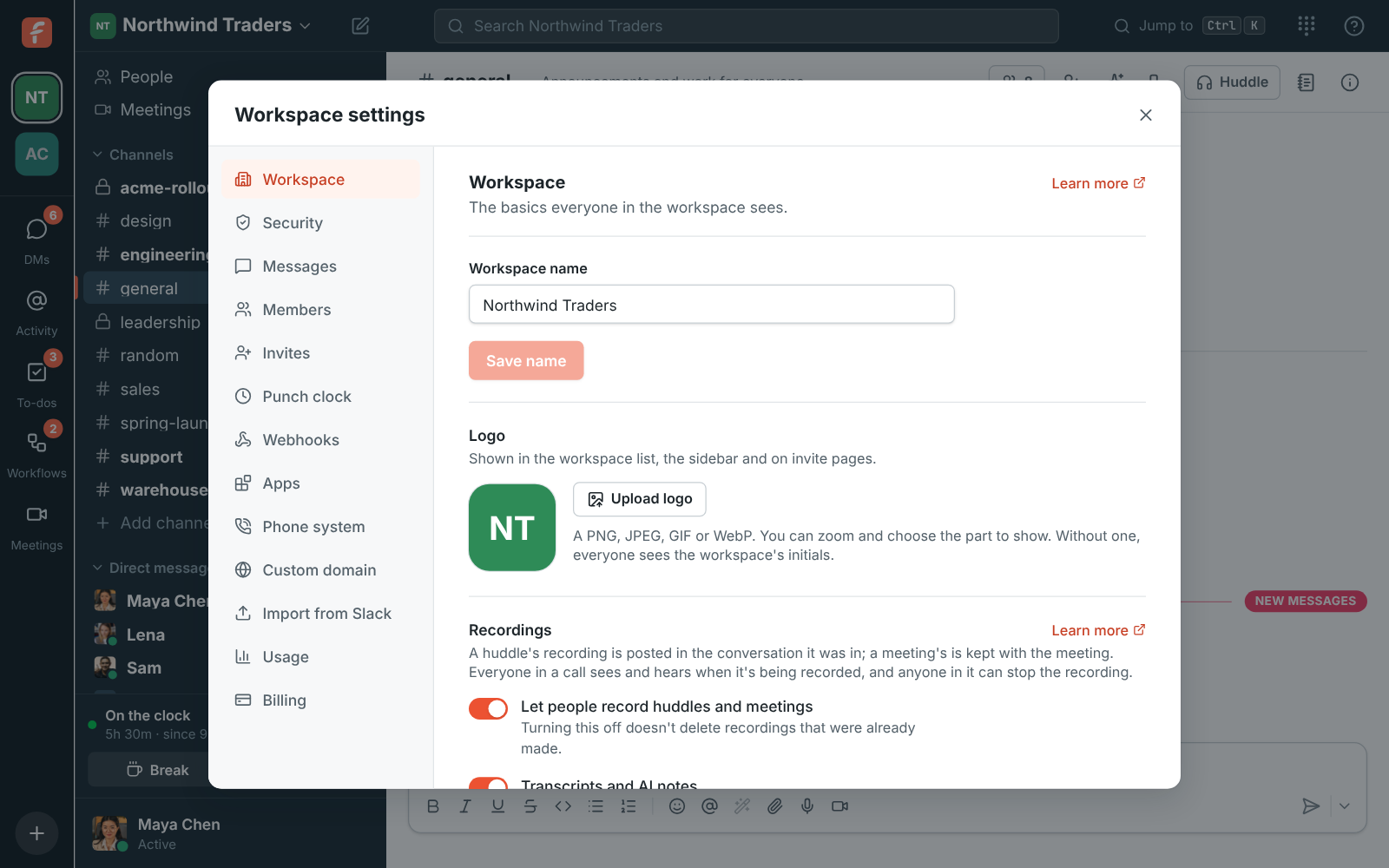
Section titled “Workspace”- Workspace name: up to 80 characters. Everyone sees the change at once.
- Logo: Upload logo, then crop and zoom. It’s shown in the workspace list, the sidebar, on invite pages, meeting links, booking pages and at the top of invite emails. Remove goes back to the workspace’s initials.
- Data region: where the workspace’s data is stored, chosen when it was created. See Data residency.
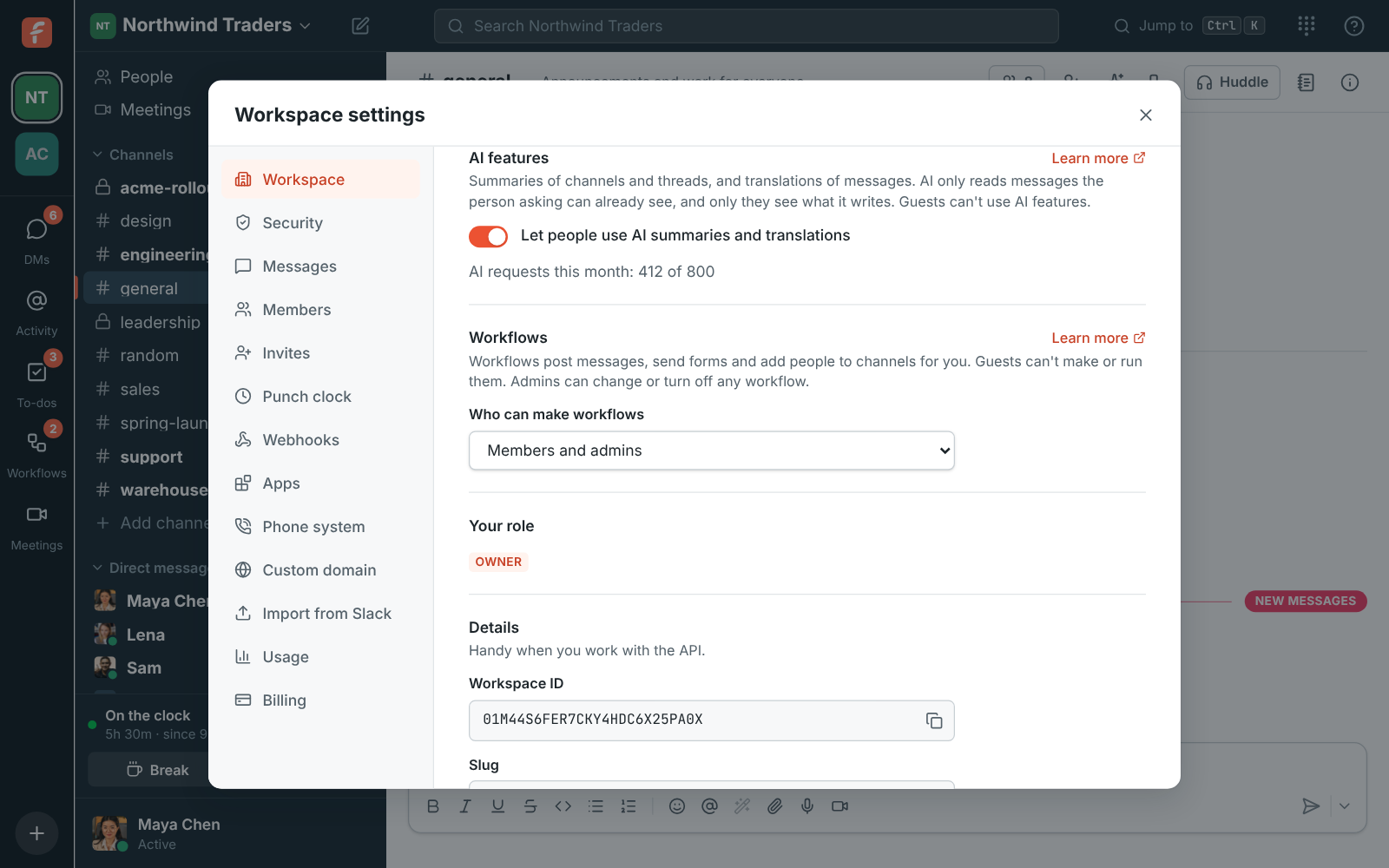
- Details: the Workspace ID and Slug, handy for the API.
Recordings
Section titled “Recordings”-
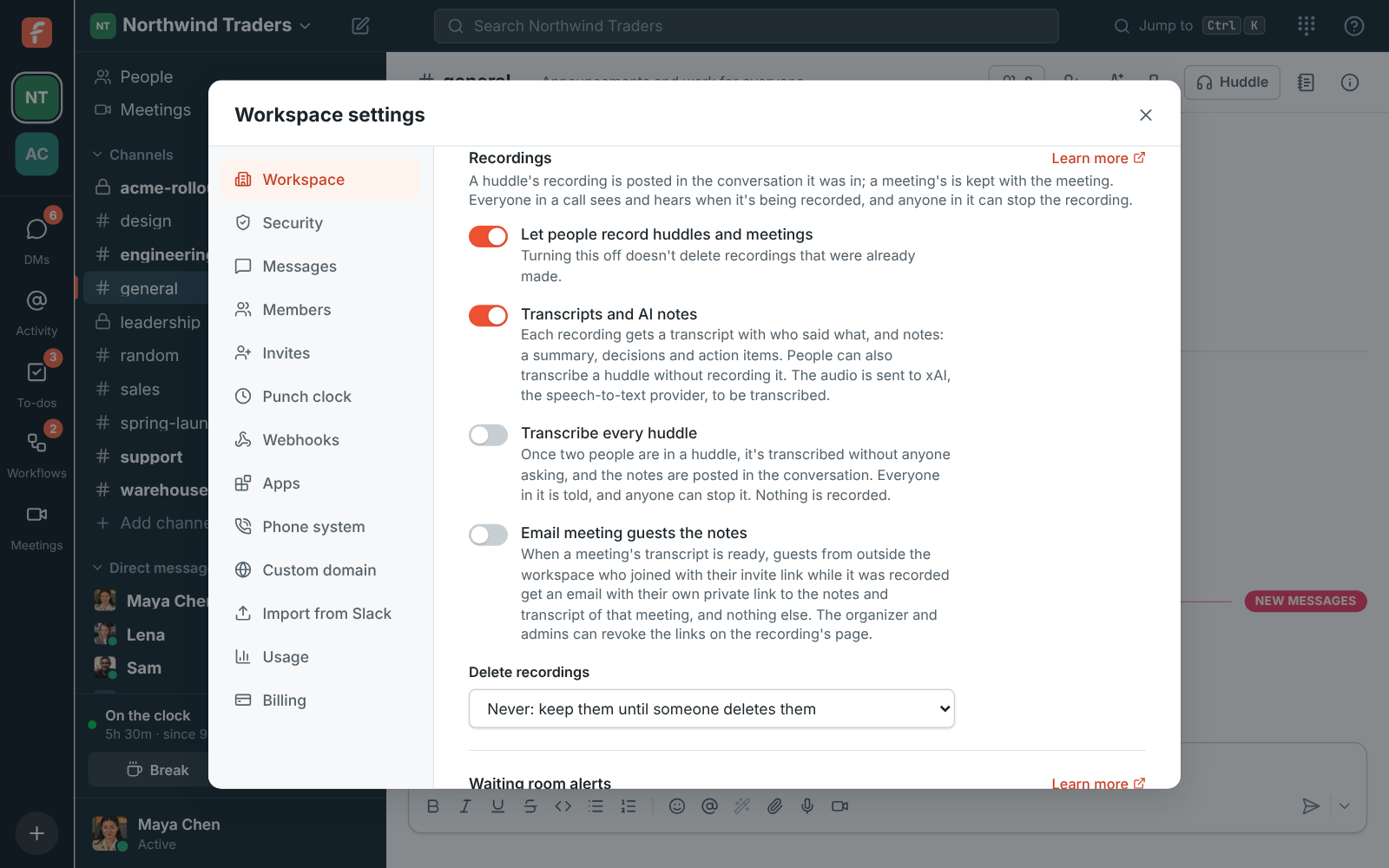
Let people record huddles and meetings: on by default. Turning it off stops new recordings but doesn’t delete recordings already made. People can still transcribe huddles.
-
Who can start and stop recordings: Everyone in the call, Whoever started it, hosts and co-hosts (the default), or Only hosts and co-hosts. Hosts are a meeting’s organizer and the people it invites, and whoever started a huddle; they can make others co-hosts during the call. Owners and admins always count as hosts, and guests can’t record. See Who can start and stop recordings.
-
Transcripts and AI notes: on by default. Each recording gets a transcript with who said what, and notes with a summary, decisions and action items. The audio is sent to xAI, our speech-to-text provider. People can also transcribe a huddle without recording it. Turn it off and new recordings are saved without them, and huddles can’t be transcribed. See Recordings, transcripts and notes.
-
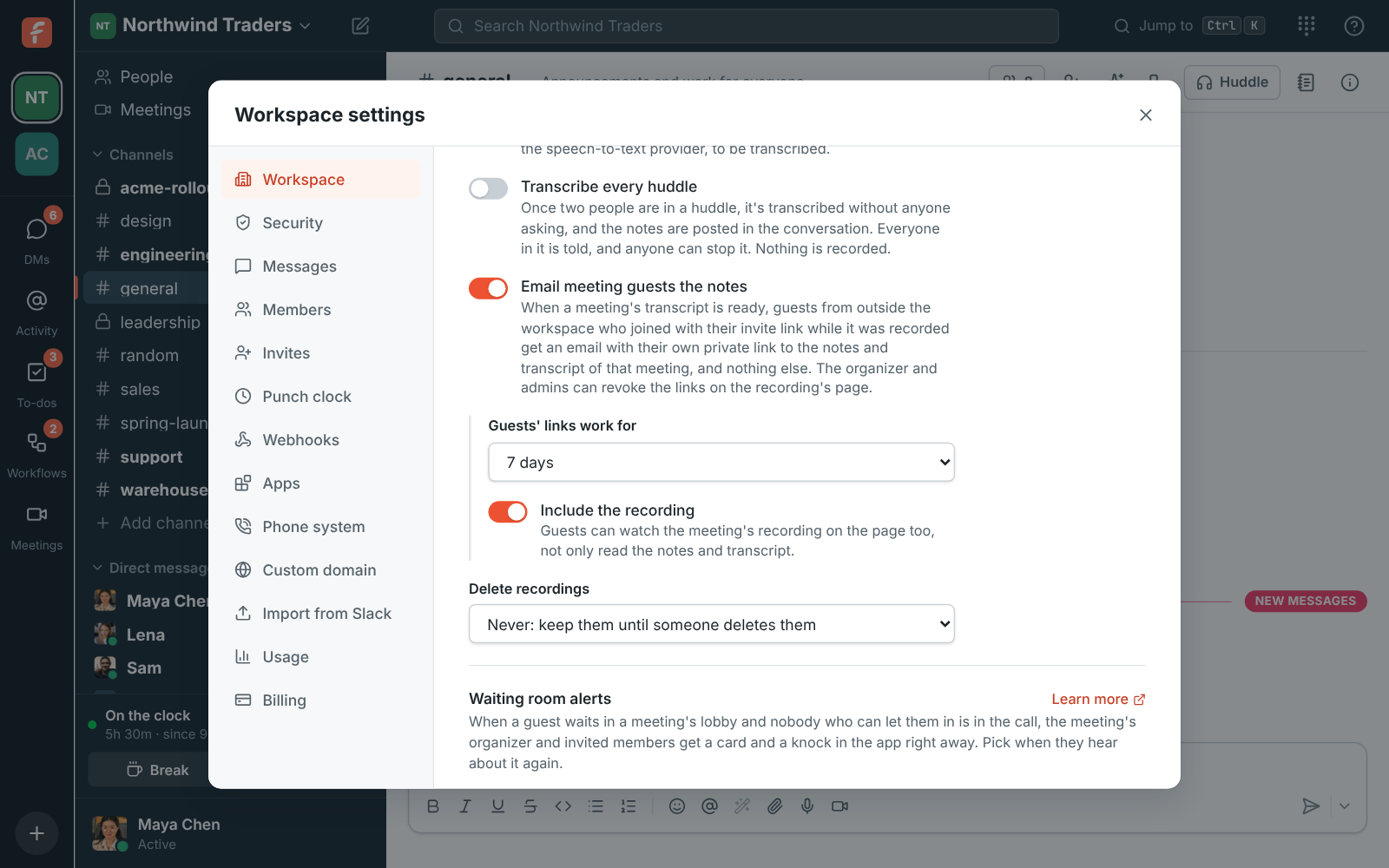
Transcribe every huddle: off by default. Once two people are in a huddle, it’s transcribed without anyone asking and the notes are posted in the conversation. Everyone in it is told, and the people who can stop recordings can stop it. Nothing is recorded. See Transcribe every huddle.
-
Share meetings outside the workspace: off by default. A meeting’s organizer, whoever recorded it and admins can share its notes and transcript with people outside the workspace, with a private link to that meeting alone. Under it:
- Email meeting guests the notes (on): when a meeting’s transcript is ready, the guests from outside the workspace who joined with their invite link while it was recorded get an email with their own link.
- Links work for up to 1, 3, 7, 14 or 30 days (7 by default).
- Allow the recording: links can play the meeting’s recording too. Guests’ emailed links always include it; people sharing a link choose.
Turning these on asks you to approve on your phone, if you set one up. See Share a meeting outside the workspace.
-
Delete recordings: Never (keep them until someone deletes them), or after 30, 90 or 365 days. Automatic deletion comes with the Corporate and Enterprise plans.
A huddle’s recording is posted in the conversation the huddle was in; a meeting’s is kept with the meeting, under Meetings → Recordings.
AI features
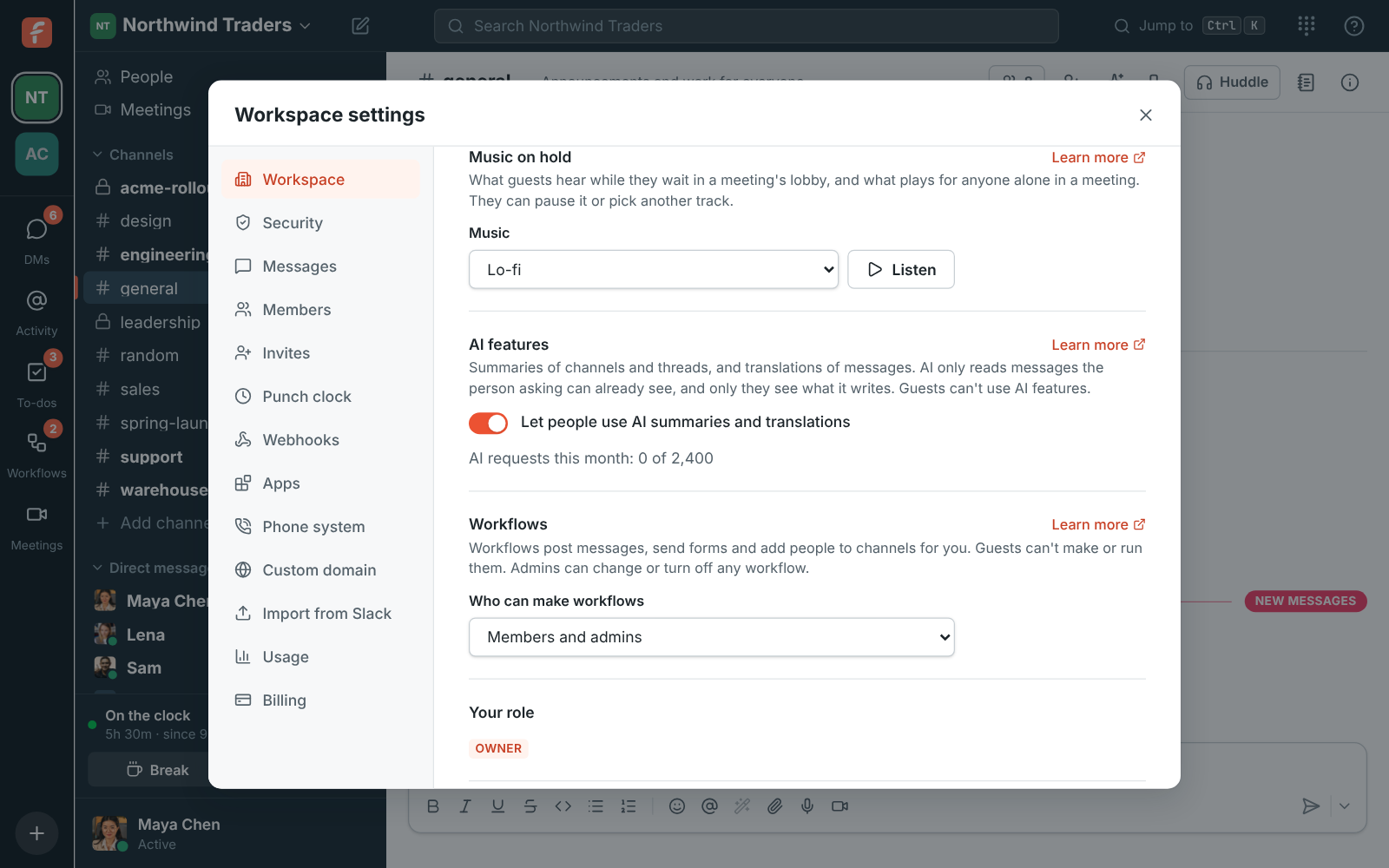
Section titled “AI features”- Let people use AI summaries and translations: on by default. People can summarize channels and threads, translate messages and get help with what they write. AI only reads messages the person asking can already see, and only they see what it writes. Guests can’t use it. Turn it off and the buttons go away for everyone.
Below the switch is how many AI requests the workspace has used this month, out of what its plan includes. See AI summaries, translations and writing help.
Waiting room alerts
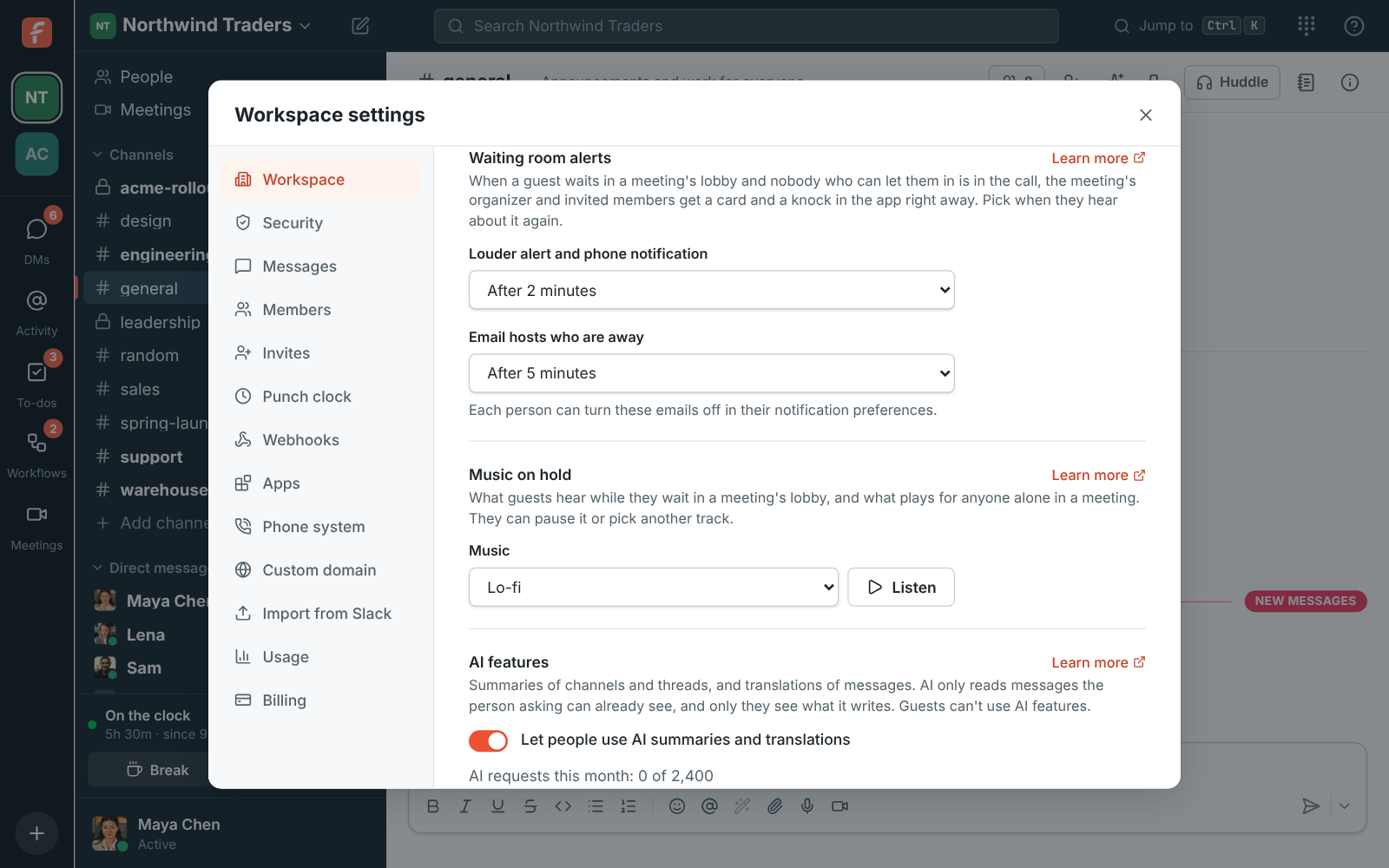
Section titled “Waiting room alerts”When a guest waits in a meeting’s lobby and nobody who can let them in is in the call, the meeting’s organizer and invited teammates get a card and a knock in the app right away. Choose when they hear about it again:
- Louder alert and phone notification: after 2 minutes by default (1, 2, 3, 5 or 10, or Off). Every app they have open knocks until someone answers, and their phone gets a push.
- Email hosts who are away: after 5 minutes by default (5, 10, 15 or 30, or Off). Only hosts who are away or don’t have Freesbe open get it, with a link to let the guest in. Each person can turn these emails off in Preferences → Notifications.
See Waiting room alerts.
Music on hold
Section titled “Music on hold”What guests hear while they wait in a meeting’s lobby, and what plays for anyone who’s alone in a meeting. Pick Lo-fi (the default), Drift, Sunny, Classic or Bossa, and press Listen to hear it first. Off lets guests wait in silence. Everyone can still pause the music or pick another track. See Music on hold.
Workflows
Section titled “Workflows”- Who can make workflows: Members and admins (the default) or Admins only. Guests can never make or run workflows. Admins can change or turn off any workflow either way. See Workflows.
Close workspace
Section titled “Close workspace”The owner can close the workspace for good: the plan stops renewing, the workspace goes read-only when the paid period ends, and everything in it is deleted 30 days later. Admins see when. See Close a workspace.
Security
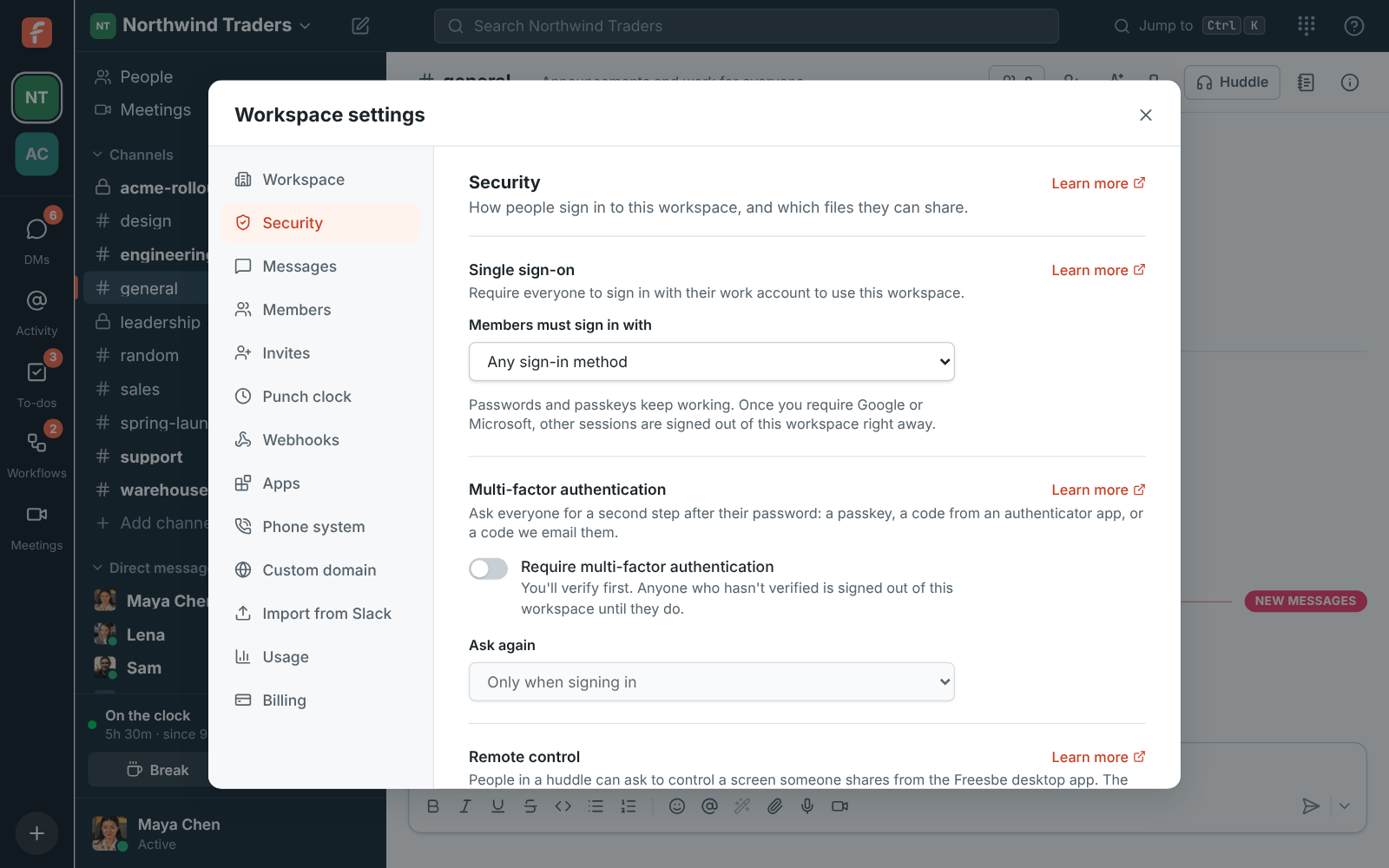
Section titled “Security”How people sign in to the workspace, and which files they can share.
Single sign-on
Section titled “Single sign-on”Require everyone to sign in with Google, Microsoft or either. See Single sign-on.
Multi-factor authentication
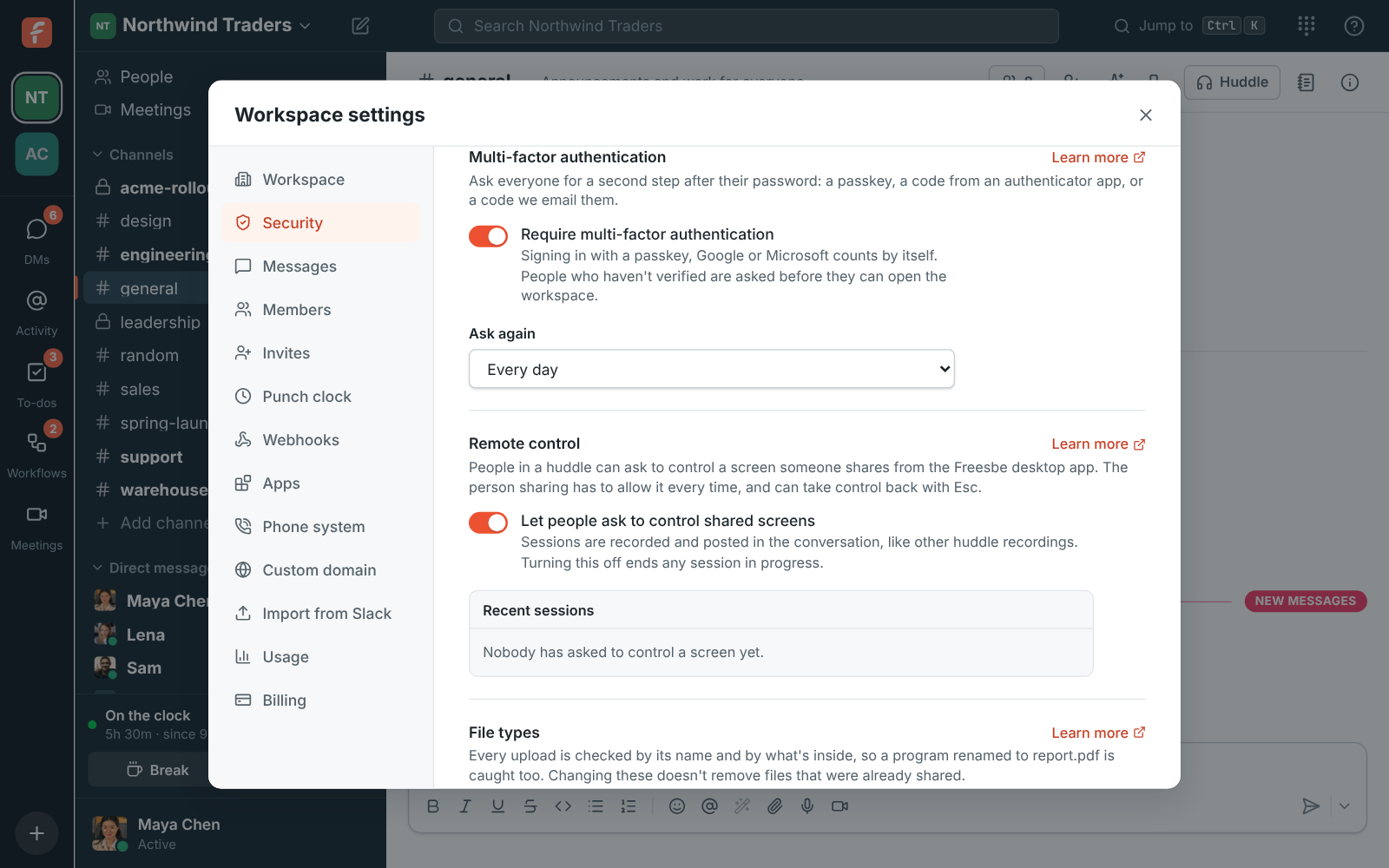
Section titled “Multi-factor authentication”- Require multi-factor authentication: everyone verifies a passkey, an authenticator app code or an emailed code to use the workspace. You verify first, so you can’t lock yourself out.
- Ask again: only when signing in, each time Freesbe opens, every 12 hours, every day or every week.
See Multi-factor authentication.
Remote control
Section titled “Remote control”- Let people ask to control shared screens: off by default. When it’s on, people in a huddle can click Request control on a screen someone shares from the desktop app, and the person sharing allows it or not, every time. Turning it off ends any session in progress.
- Recent sessions lists the last 100 requests: who asked, whose screen, whether it was allowed, how long it lasted and who stopped it, and whether it was recorded. For support sessions, What they agreed to shows the exact words the customer was shown when they allowed it.
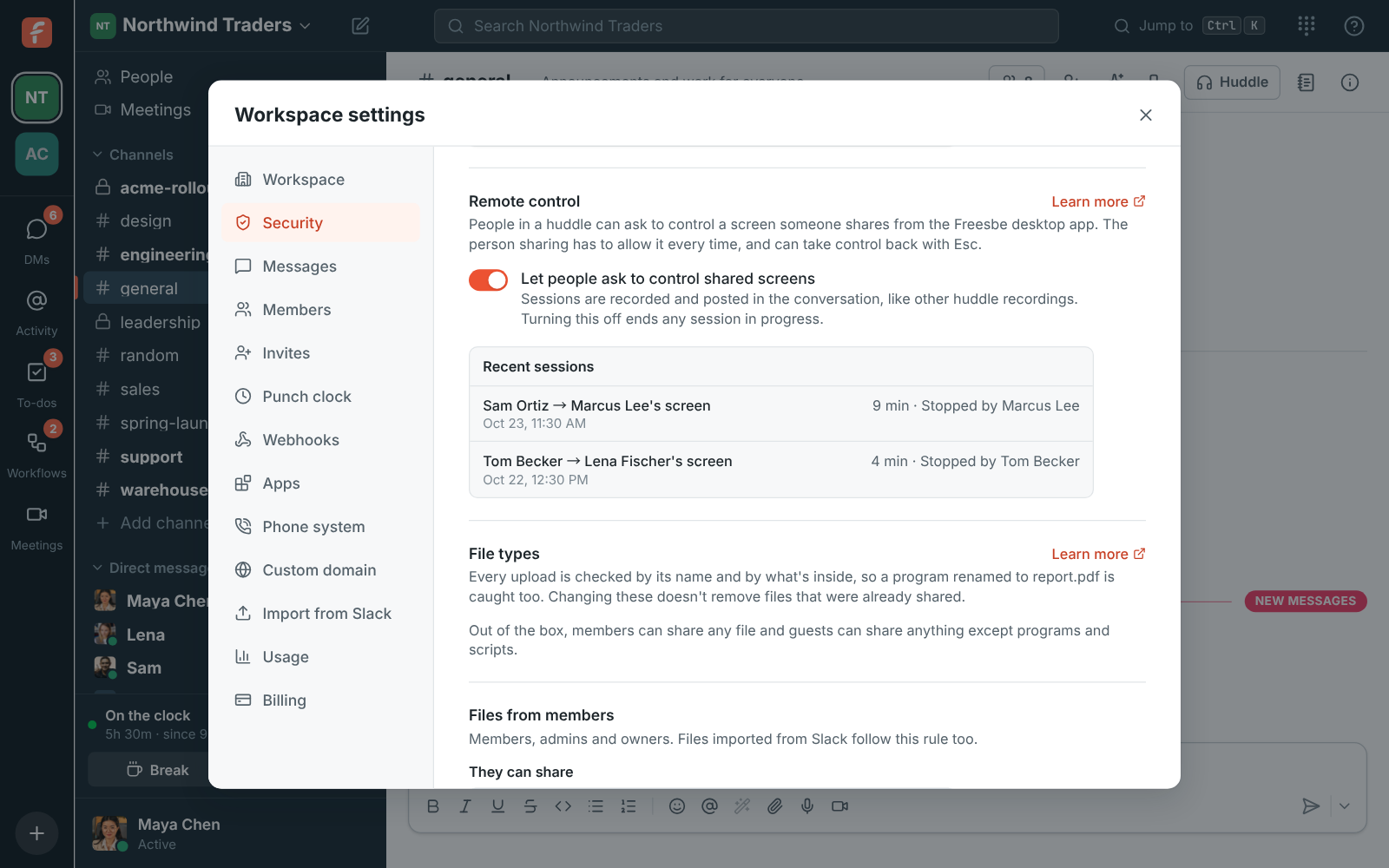
See Remote control.
File types
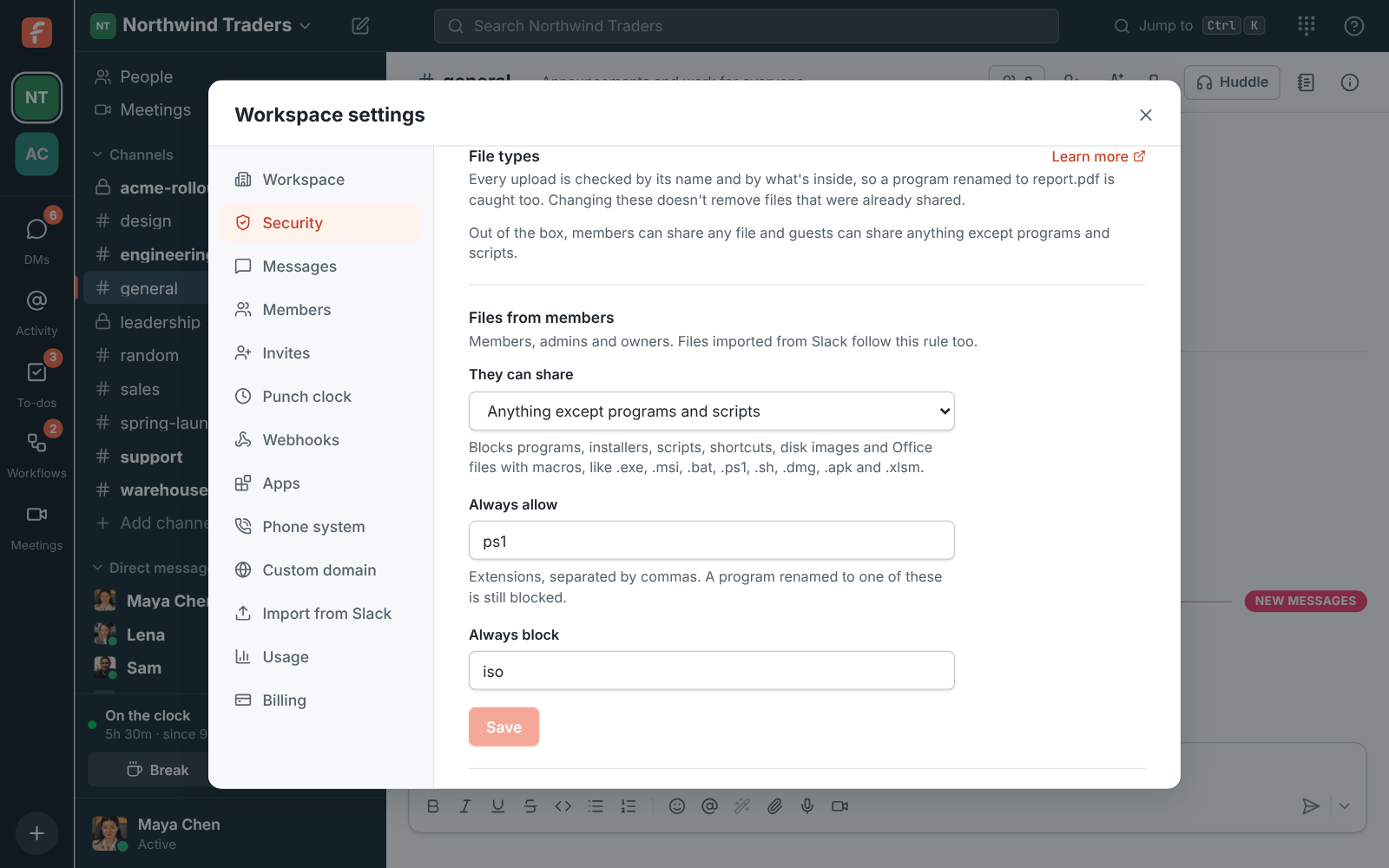
Section titled “File types”- Files from members and Files from guests: any type of file, anything except programs and scripts, or only the kinds you pick. Out of the box, guests can’t share programs and scripts.
- Always allow and Always block lists of extensions come with the Corporate and Enterprise plans.
Every upload is checked by its name and by what’s inside. See File types.
Security activity
Section titled “Security activity”Every member’s sign-ins, failed sign-ins, second steps and changes to how they sign in, from when they joined, with the browser and address each came from. Filter by member, event or month, and export what you see as a CSV file. See Security activity.
Audit log
Section titled “Audit log”A record of what owners and admins changed in the workspace, newest first, like the audit logs in Slack and Microsoft 365. Each line says who did what and to whom, when, and the internet address it came from. Show older goes further back.
It records:
- Settings: any change in Workspace settings, naming the settings that changed.
- Members: making someone an admin or a member, deactivating and reactivating people, handing the workspace to a new owner, and people leaving because they deleted their Freesbe account.
- Invites: invite links made, invites emailed (how many and as which role) and invites revoked.
- Email domains: domains added, changed and removed, and each request to join that an admin let in or declined.
- Webhooks and apps: added and deleted, by name.
- Exports: started (public channels, or everything) and downloaded. See Export your data.
- Closing: the owner closing the workspace, and reopening it. See Close a workspace.
Entries are kept for a year, then deleted. The log keeps who did something, not their name: if someone deletes their Freesbe account, their lines show Former member. Messages admins deleted are listed in Messages, under Deleted by admins.
Messages
Section titled “Messages”Who can edit and delete messages, like the message editing and deletion settings in Slack and Teams, and who sees read receipts. They apply everywhere in the workspace, in channels and DMs, and changing them doesn’t touch messages already sent.
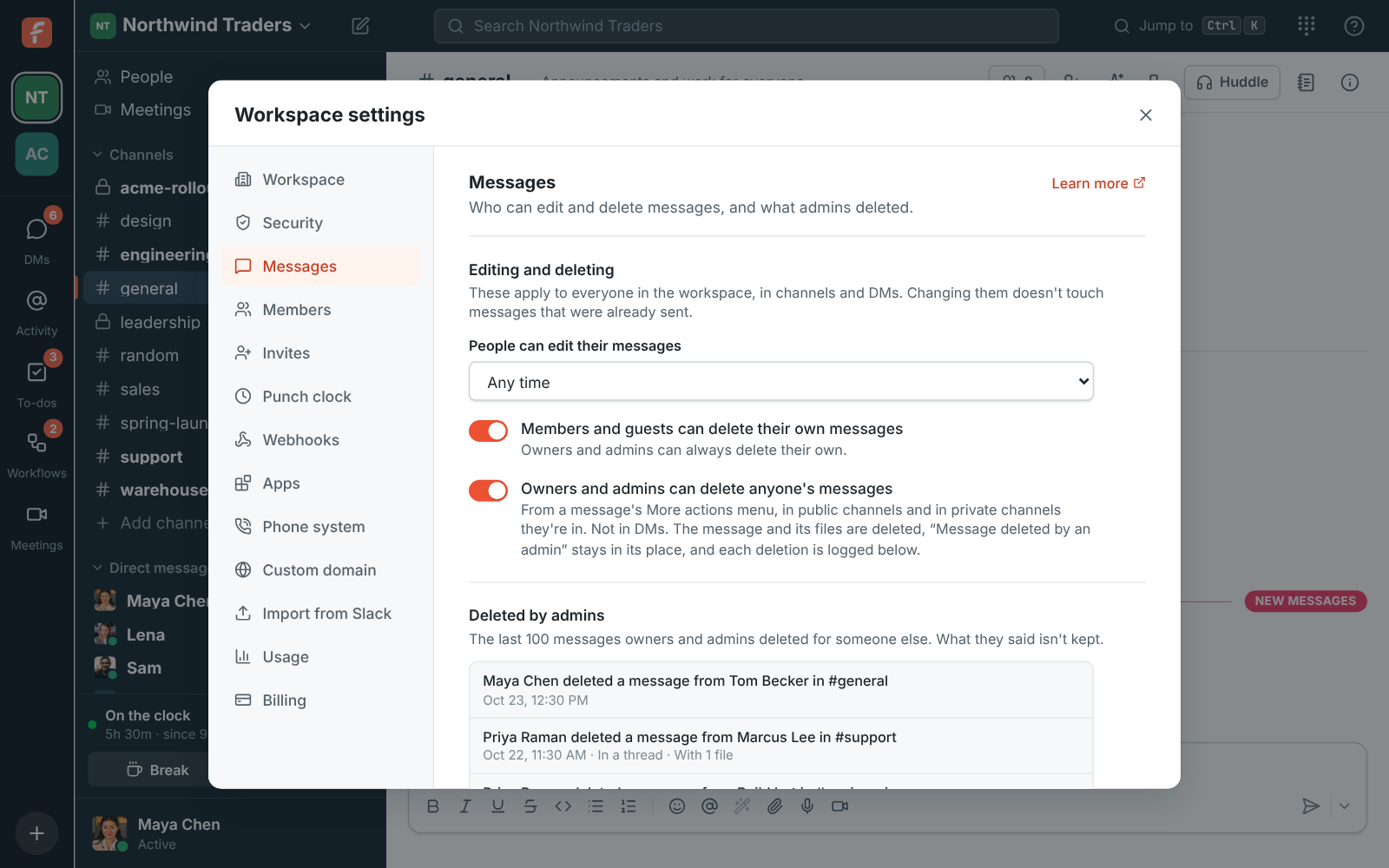
- People can edit their messages: Any time (the default), Never, or up to 5 minutes, 1 hour, 1 day or 1 week after sending.
- Members and guests can delete their own messages: on by default. Turn it off and only owners and admins can delete messages. Owners and admins can always delete their own.
- Owners and admins can delete anyone’s messages: on by default. They do it from a message’s More actions menu, in public channels and in private channels they’re in, but not in DMs. The message and its files are deleted and Message deleted by an admin stays in its place. See Deleting someone else’s message.
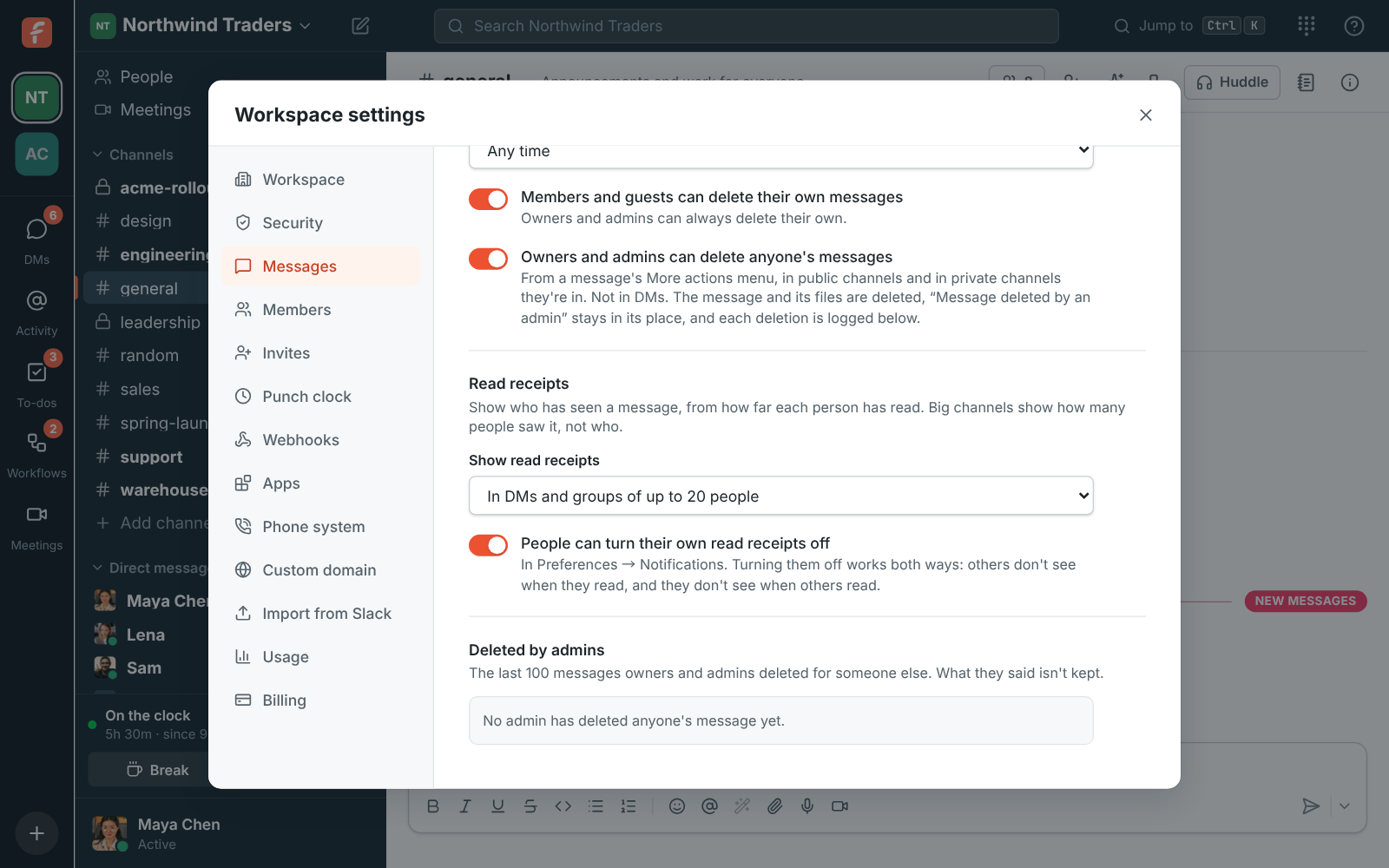
- Deleted by admins lists the last 100 messages owners and admins deleted for someone else: who deleted it, whose it was, which channel, when, and whether it was in a thread or had files. What the message said isn’t kept.
Read receipts
Section titled “Read receipts”Whether people see who has read their messages, like read receipts in Teams and WhatsApp. They come from how far each person has read, so turning them on shows reads from before too. See Read receipts for what people see.
- Show read receipts: Off (the default), In DMs and groups of up to 20 people, or Everywhere. Everywhere adds bigger channels, where people see how many saw a message but not who.
- People can turn their own read receipts off: on by default. Each person then chooses in Preferences → Notifications, or on the You tab of the mobile app. Turning them off works both ways: others don’t see when they read, and they don’t see when others read. Turn this off to have read receipts on for everyone.
Members and invites
Section titled “Members and invites”Email domains
Section titled “Email domains”Let people with an address at your company’s domains join without an invite, at once or after an admin approves them. See Join by email domain.
Profile fields
Section titled “Profile fields”Profile fields are the work details on everyone’s profile, so people can tell who’s contacting them: what department they’re in, where they sit, who they report to and how to call them. People fill in their own in Preferences → My account → Profile, and admins can fill them in for anyone.
Every workspace starts with five built-in fields: Pronouns, Department, Location, Manager (a person in the workspace) and Phone. In Workspace settings → People → Profile fields you can:
- Rename a field, by typing a new name over it (for example Desk phone or Office).
- Reorder fields with the arrows. Profiles show them in this order; pronouns always sit under the name.
- Delete a field, with everyone’s values in it. Add a field → Built-in brings a built-in one back.
- Hide from guests: guests from other companies don’t see the field on anyone’s profile. Department, location, manager and phone start hidden from guests; pronouns don’t.
- Add your own field (Business, Corporate and Enterprise): Add a field, then pick what it holds: Text, Link, Date, Person, List of choices or Phone number. Give it a name, like Region, Start date, Cost center or Team lead. A list of choices takes its choices separated by commas.
- Only admins fill it in (Business, Corporate and Enterprise): people see the field but can’t change their own, for details that come from HR, like department or cost center.
Click Save changes when you’re done.
On the Free plan you can rename, reorder, hide and delete the built-in fields:
Fill in profiles for someone
Section titled “Fill in profiles for someone”In Workspace settings → People → Members, click the pencil next to someone’s name to change their title and work details, including fields only admins fill in.
Fill in everyone from a spreadsheet
Section titled “Fill in everyone from a spreadsheet”For a whole company at once, use Fill in from a spreadsheet at the bottom of Profile fields:
- Click Download spreadsheet. It has a row for everyone (guests left out), with Email, Name and a column for each field, filled in with what’s there now.
- Fill in the columns in Excel or Google Sheets, from your HR system’s export for example. For Manager, put the manager’s email address (or full name). Dates look like 2026-04-30.
- Save it as CSV and click Upload CSV. Freesbe shows how many people it will update, plus any rows it can’t use: an email that isn’t in the workspace, a column that isn’t a field, or a value that doesn’t fit (a manager it can’t find, a choice that isn’t on the list).
- Click Update profiles.
Rows are matched by email, and columns by the field’s name. Empty cells leave a value as it is, so a spreadsheet with just Email and Department changes only departments.
Directory sync (SCIM) for Enterprise, which keeps these fields in step with your identity provider, is planned.
Punch clock
Section titled “Punch clock”See Punch clock.
Webhooks
Section titled “Webhooks”Webhooks connect Freesbe to other tools without writing a full integration.
- Incoming webhooks let other services post into a channel. Each has its own secret URL and accepts the same JSON as Slack’s incoming webhooks, so existing Slack integrations only need the new URL.
- Outgoing webhooks send signed events to your own server when things happen, such as New message, Message edited, Message deleted, Reaction added, Reaction removed, Channel created, Someone joined a channel and Someone left a channel.
To add one, choose Incoming or Outgoing, click Add incoming webhook (or Add outgoing webhook), and fill in the name and the channel (or, for outgoing, the Payload URL and events). The URL or signing secret is shown only once, so copy it right away.
Each webhook card has Deliveries (the log of recent deliveries, kept for 14 days), Send test, and a menu to Edit, Make a new URL (or secret), Turn off / Turn on, and Delete.
Webhooks act for the admin who made them. A webhook turns off when that person is deactivated, or leaves the private channel it’s bound to; another admin can turn it back on. A webhook bound to a private channel is only visible to admins in that channel.
The details of payloads and signatures are in API and webhooks.
Apps connect your own tools, or bots you built for Slack, to the workspace. Each app has a bot that posts as itself and shows an App badge, and a bot token that can only do what the app’s scopes allow. Click Create app and pick scopes, or paste a Slack app manifest; the token is shown only once. Each app’s menu has Edit, Make a new token, Turn off / Turn on and Delete. App bots aren’t listed under Members and don’t take a seat.
See Apps for the details.
Integrations
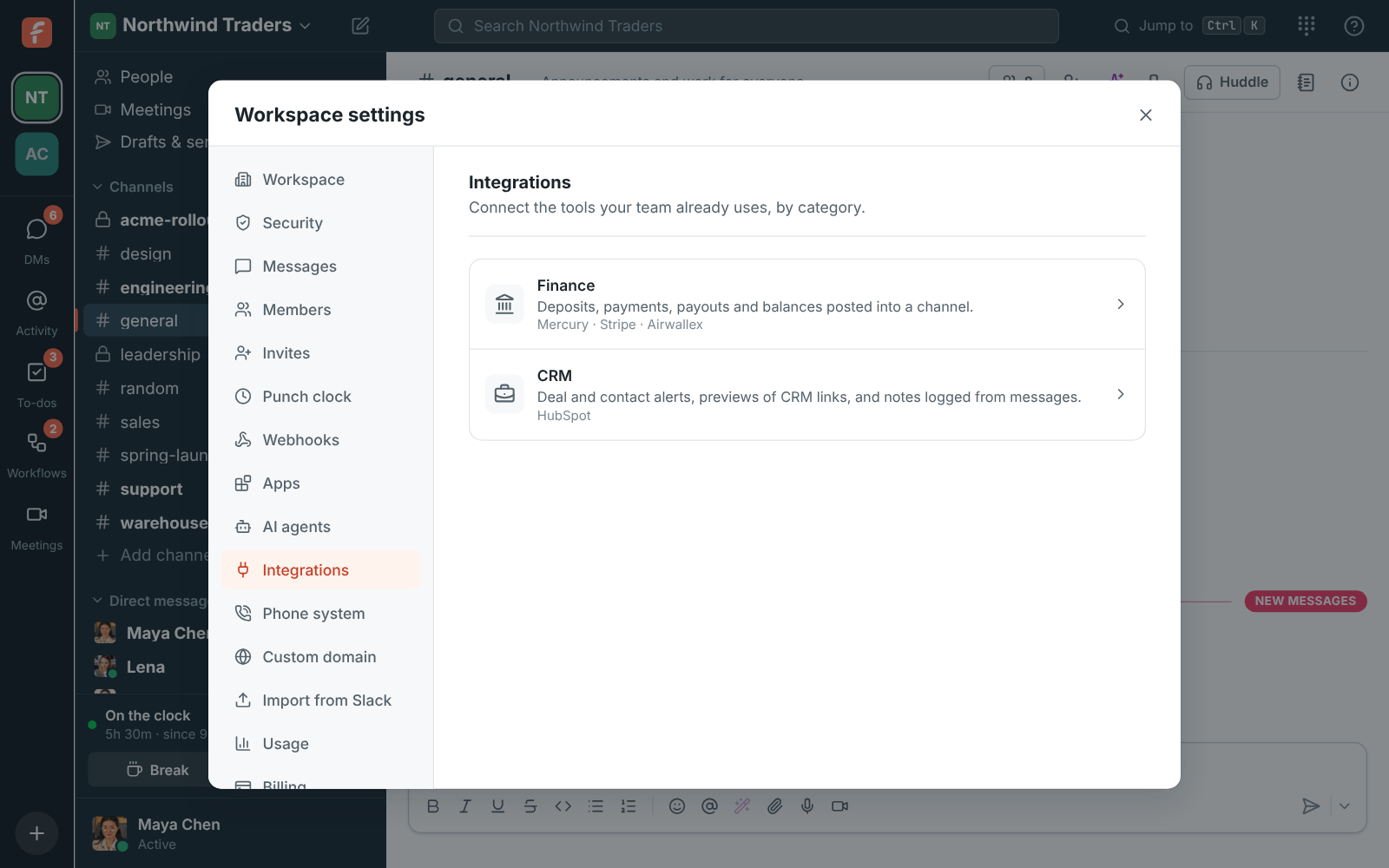
Section titled “Integrations”Integrations connect the tools your team already uses, grouped by category. Click a category to open it, and Integrations at the top to go back.
Customer inbox
Section titled “Customer inbox”Put a chat on your website or forward your support email address here (texts and WhatsApp messages to your numbers are under Phone → Messaging): customers write, and every conversation gets its own thread in the channel you pick, where your team answers, hands it off, writes internal notes and uses saved replies. Each web chat has a snippet to paste into your site, Try the chat, and Edit, Turn off / Turn on and Delete in its menu.
See Customer inbox for the details.
Finance
Section titled “Finance”Connect Mercury, Stripe or Airwallex to post deposits, payments, payouts and balances into a channel as they happen. Pick the channel, which kinds of alerts to post and the smallest amount worth posting. Mercury connects with an API token Freesbe uses once; Stripe and Airwallex take a URL from Freesbe and give back a signing secret. Each account’s menu has Send a test alert, Edit, Turn off / Turn on and Delete.
See Payment alerts for the details.
Kraken sits under the payment alerts: paste a read-only API key and Freesbe checks the account every minute (every five once it’s quiet), posting deposits, withdrawals, trades, balance alerts and a daily summary. See Kraken for the details.
Crypto wallets sits under Kraken: add a wallet’s public address on Bitcoin, Ethereum and other EVM chains, Solana or Tron, and money in and out posts with its dollar value, plus balance alerts and a daily summary of all wallets. See Crypto wallets for the details.
Zoho Books and Zoho Invoice sit under the payment alerts, each connected on its own. Connect Zoho Books signs in to Zoho, in whichever data center your account is in. Their alerts post invoices sent, payments received, invoices paid in full and overdue invoices, with a smallest amount for each alert; Freesbe checks Zoho every ten minutes. Invoice links get a preview. See Zoho Books and Zoho Invoice for the details.
Calendar
Section titled “Calendar”The Calendar app sends each person their daily agenda, a reminder before each meeting and their calendar invitations, from their own Google Calendar, Outlook or Zoho Calendar. It’s on to start with; turn off Let people use the Calendar app in this workspace to stop its messages here straight away. The page also shows how many people get Calendar app messages in the workspace. People turn it on for themselves in Preferences → Notifications → Calendar.
See Calendar app for the details.
The same page has the calendar add-ins, which put Freesbe meeting in Outlook where Teams usually is and in Google Calendar next to Google Meet. They’re on to start with: turn off Let people add Freesbe meetings from Outlook and Google Calendar to stop them here. The page has the link to add the Outlook add-in in the Microsoft 365 admin center, the Google Calendar add-on’s files, and the steps to make Freesbe the default. See Freesbe meetings in Outlook and Freesbe meetings in Google Calendar.
Automation
Section titled “Automation”Connect Zapier, Make, n8n or Zoho Flow to start their flows when something happens in Freesbe, and let them post messages, react and make channels. Connect makes a bot for the tool and shows its API key once, to paste into the tool; New API key replaces it. Triggers listening lists what each flow is waiting for, with a button to stop one.
See Zapier, Make, n8n and Zoho Flow for the details.
Support
Section titled “Support”Connect Zendesk to post ticket alerts into channels, show pasted ticket links as cards and add Create Zendesk ticket to every message’s menu. Sign in with Zendesk as a Zendesk admin, or use an agent’s API token. Each alert picks a channel, a Zendesk group or all of them, and which ticket changes to post.
See Zendesk for the details.
Zoho Desk sits under Zendesk, on every plan. Connect Zoho Desk signs in to Zoho, in whichever data center your account is in; connect as a Zoho Desk administrator so alerts can be turned on. Its alerts post new tickets, status changes, customer replies, and priority and assignment changes, for every department or one. It adds Create Zoho Desk ticket to every message’s menu and previews Zoho Desk ticket links. See Zoho Desk for the details.
Connect Freshdesk with an agent’s API key to do the same for Freshdesk tickets, plus /freshdesk
to look tickets up and Add to Freshdesk ticket to add a message to a ticket as a private note.
Freesbe shows the webhook URL and the two automation rules to add in Freshdesk so ticket changes
reach it. See Freshdesk for the details.
Connect HubSpot to post new deals, stage changes, won and lost deals and new contacts into the
channels you pick, show a preview under HubSpot links, and add /hubspot and Log to HubSpot
for everyone. Connect HubSpot signs in to HubSpot and asks you to allow Freesbe; then turn
link previews on or off and add alerts, each with a channel, the kinds to post and the smallest
deal worth posting. Disconnect stops it all and keeps your alerts for next time.
See HubSpot for the details.
Salesforce sits under HubSpot on the same screen, on the Corporate and Enterprise plans. Connect
Salesforce signs in to your org (or a sandbox, with Connect a sandbox ticked) and asks you to
allow Freesbe. Its alerts post new opportunities, stage changes, won and lost opportunities, new
leads and new cases, checked every five minutes. It adds /salesforce and Log to Salesforce
for everyone and previews Salesforce links. See Salesforce for the details.
Pipedrive sits under Salesforce. Connect Pipedrive signs in to your Pipedrive company and asks
you to allow Freesbe; connect as a Pipedrive admin so alerts can be turned on. Its alerts post new
deals, stage changes, won and lost deals, and new leads as they happen. It adds /pipedrive and
Log to Pipedrive for everyone and previews Pipedrive links. See Pipedrive
for the details.
Zoho CRM sits under Pipedrive, on every plan. Connect Zoho CRM signs in to Zoho, in whichever data
center your account is in, and asks you to accept Freesbe. Its alerts post new deals, stage
changes, won and lost deals, new leads and new contacts, as they happen. It adds /zoho and Log
to Zoho CRM for everyone and previews Zoho CRM links. See Zoho CRM for the
details.
Recruiting
Section titled “Recruiting”Integrations → Recruiting has Zoho Recruit, on every plan. Connect Zoho Recruit signs in to Zoho, in whichever data center your account is in, and asks you to accept Freesbe. Its alerts post new candidates, status changes, hires, new job openings and scheduled interviews, as they happen, and it previews Zoho Recruit links. See Zoho Recruit for the details.
Monitoring
Section titled “Monitoring”Integrations → Monitoring has Zabbix, Grafana, Alertmanager, PagerDuty, Opsgenie, Datadog, Sentry, Better Stack, New Relic, Uptime Kuma and UptimeRobot, on every plan. Connect under Zabbix gives you a URL to paste in Zabbix with Freesbe’s media type, and problems then post into the channel you pick as cards that turn green when they’re resolved. Add Zabbix’s address and an API token for Acknowledge and Close problem buttons on the cards, and for /zabbix host and questions. Each connection also pins a live problems board in its channel, and can post a report every morning or every Monday. See Zabbix for the details.
Grafana and Alertmanager work the same way: paste the URL in a Grafana webhook contact
point or Alertmanager’s webhook_configs, and each alert posts as a card. Add the address and an
API token for a Silence for 1 hour button. See Grafana and Alertmanager.
PagerDuty posts each incident from a Generic Webhooks (v3) subscription, with Acknowledge
and Resolve buttons once you add an API key. See PagerDuty. Opsgenie
posts each alert from a Webhook integration, with Acknowledge and Close buttons once you
add an API integration’s key. See Opsgenie. Datadog posts monitor alerts
from a webhook with the payload Freesbe shows, with a Mute for 1 hour button once you add an
API key and an application key. See Datadog. Sentry posts issues and alerts
from an internal integration, with Resolve and Archive for 1 hour buttons once you add its
token. See Sentry. Better Stack posts uptime incidents from a webhook, with
Acknowledge and Resolve buttons once you add an API token. See
Better Stack. New Relic posts alert issues from a workflow, with
Acknowledge and Resolve buttons once you add a user key. See New Relic.
Uptime Kuma and UptimeRobot post monitors that go down, until they’re back up. See
Uptime Kuma and UptimeRobot.
Phone system
Section titled “Phone system”The Phone group has three tabs. Phone system turns on a phone system from Freesbe, or connects your own sip.io account instead. Numbers is where you buy numbers for the workspace and pick who each one rings. Messaging brings texts to your numbers and messages to your WhatsApp Business number into a channel, one thread per customer, in test mode first; see texts to your Freesbe numbers and WhatsApp. See a phone system from Freesbe and connect sip.io.
How much video the workspace’s calls and meetings used this month, and how much storage its files and recordings take, each against its limit. If video is off because the allowance ran out, it says so here. See Usage limits.
Billing
Section titled “Billing”The workspace’s plan, how many people count toward it, what each plan costs yearly or monthly, and the workspace’s invoices. See Billing.
Custom domain
Section titled “Custom domain”Put everyone’s booking, meeting and invite links on your company’s own address, like meetme.acme.com/dana. It
comes with the Corporate and Enterprise plans. See
Custom domains.
Answers come from the Freesbe guides and are written by AI, so check the linked guide before relying on one. Please don't include personal details such as emails or passwords.