
Profile and preferences
Open Preferences from your account menu at the bottom of the sidebar, or from the workspace menu. The list on the left has four groups, each with tabs across the top:
| Group | Tabs |
|---|---|
| My account | Profile, Account (email, password, sign out), Sign-in and Sessions and apps |
| Notifications | Notifications and Calendar |
| Calls & audio | Audio, Video and Phone |
| Appearance | Theme, Language, and Desktop app in the desktop app |
To find something, type in Search settings at the top of the list: sound finds your notification sound and ringtone, dark finds the theme and passkey finds passkeys. Pick a result and Freesbe opens its group and tab and highlights the setting. Search works in your language and in English, and Ctrl+F (⌘+F on a Mac) jumps to the box.
Profile
Section titled “Profile”- Picture: click your picture (marked Change, or Add when you have none) to upload a new one, or use the buttons next to it: Take photo with your computer’s camera, Use phone to take it with your phone, or Import from Google (or Import from Microsoft) when you signed in that way. Remove goes back to your initials. Then drag and zoom to crop it and click Save. Use without cropping keeps an image (such as an animated GIF) as it is. See Your profile picture for the camera, the phone and Improve with AI.
- Full name: how you appear everywhere in Freesbe.
- Title: what you do, such as “Support lead”. It’s shown on your profile in this workspace, and you can have a different title in each workspace.
- Work details: the fields your workspace uses, such as Pronouns, Department, Location, Manager and Phone, plus any your admins added (like Region or Start date). For Manager, type a name and pick the person. A field with a lock is filled in by your admins, so you can see it but not change it.
- Time zone: others see your local time next to your name in DMs. Freesbe suggests your device’s time zone if it differs.
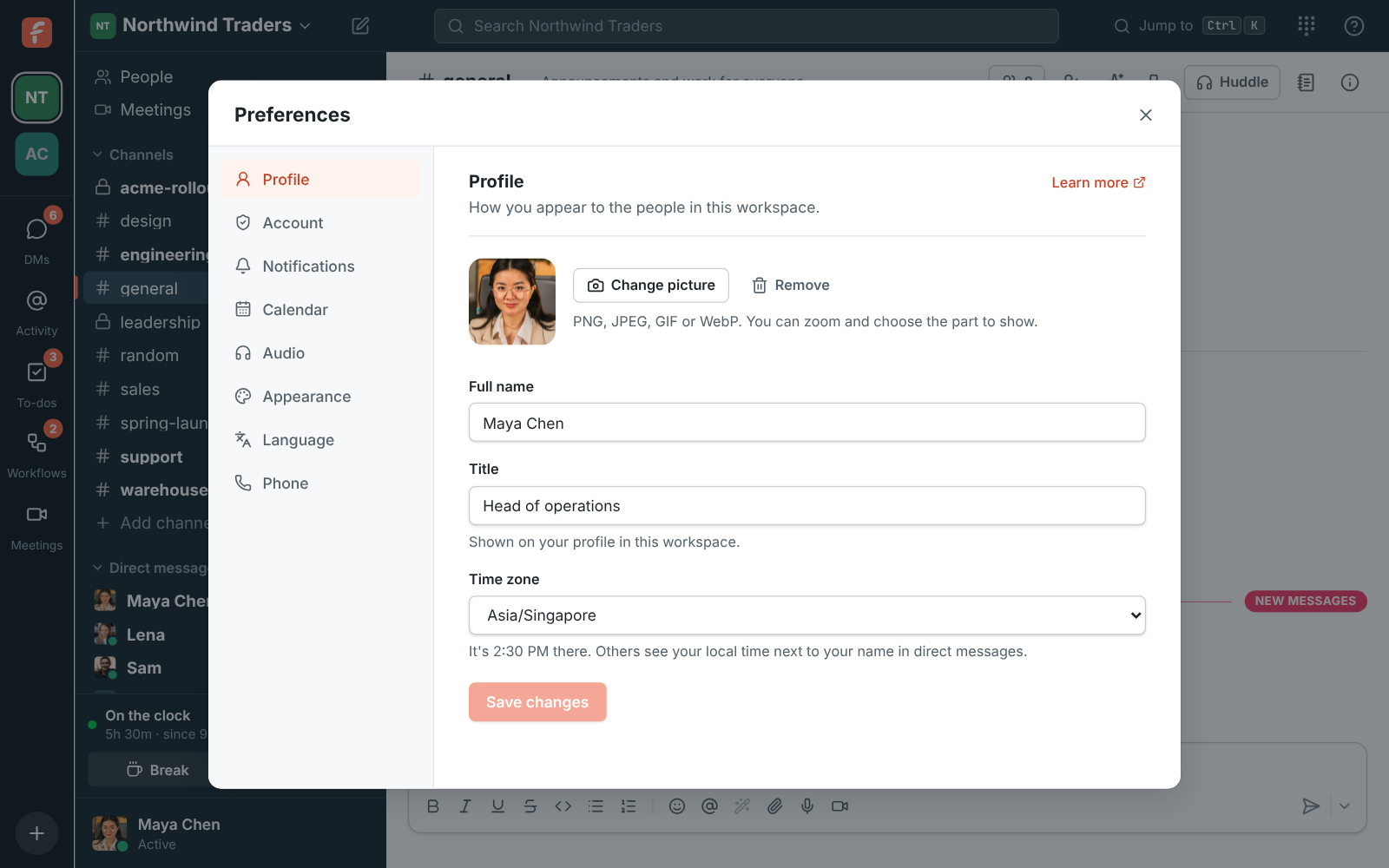
Click Save changes when you’re done.
Working hours
Section titled “Working hours”Under Working hours, tick the days you work and set when you start and finish, in your time zone. Everyone starts with Monday to Friday, 9 to 5. Teammates scheduling a meeting with you see your working hours, and the times Freesbe suggests stay inside them (see Find a time that works). Click Save working hours.
Your profile picture
Section titled “Your profile picture”If you joined with Google or Microsoft, or connected one of them to your account, Freesbe uses that account’s photo when you don’t have a picture yet. Each time you sign in that way, Freesbe picks up a newer photo if you changed it there. Once you upload or take a picture of your own, Freesbe keeps it and stops using the photo from Google or Microsoft.
You can upload a picture, take one right away, or bring in your Google or Microsoft photo:
- Import from Google (or Import from Microsoft) shows up when you signed in with Google (or Microsoft). It opens the photo that account shared at sign-in, ready to crop, even if you use another picture now. If Freesbe doesn’t have that photo yet (say you signed in before this button came along), it takes you through Google or Microsoft for it, usually without asking anything, and back to the crop step. In the desktop app that happens in your web browser. If the account still sends no photo, Freesbe tells you why.
- Take photo opens your computer’s camera. Allow Freesbe to use it when your browser or computer asks. Line your face up with the oval, click Take photo, then Use photo (or Retake). If you have more than one camera, pick it at the bottom left.
- Use phone shows a QR code. Point your phone’s camera at it and tap the link: a page opens in your phone’s browser, with no app or sign-in needed. Tap Take a photo (or Choose from your photos), then Send to computer. The photo shows up on your computer, ready to crop. The code works once, for 10 minutes, and stops working when you close the dialog.
Whichever way you pick a picture, you crop it next and click Save.
Improve with AI
Section titled “Improve with AI”In the crop step, click Improve with AI to let AI touch up your photo. It finds your face, centres it in the frame, fixes the light and colour (a dark or backlit face, a washed out or too-blue photo), and can soften a busy background a little. It doesn’t redraw your face or invent anything: the changes are made to your own photo, so you still look like you.
Drag the slider to compare before and after, then click Use improved or Keep original. Back returns to cropping. Nothing changes on your profile until you choose.
- It only works on a photo of a person with their face showing. A logo, a drawing, a pet or a photo without a clear face is turned away, and you can still keep it as it is.
- Each person can use it 3 times a day (the count starts again at midnight UTC), and each workspace 20 times a day on the Free plan or 200 on paid plans. A photo that was turned away counts too.
- It’s there when AI features are on for your workspace, and like other AI features, it counts toward your workspace’s monthly AI allowance. Guests don’t have it.
- Your photo is sent to the AI provider only so it can look at it. Freesbe doesn’t keep that copy, and the provider doesn’t use it to train its models.
See who someone is
Section titled “See who someone is”Click anyone’s name or picture to open their profile. Under their name and title you see their pronouns, then their work details: department, location, manager (click to open the manager’s profile), phone (click to call), any fields your workspace added, and the people who report to them. So when someone you don’t know messages you, one click tells you who they are and where they sit.
Guests from other companies see your name, title and pronouns, but not your department, location, manager or phone, unless your admins chose to show a field to guests.
Account
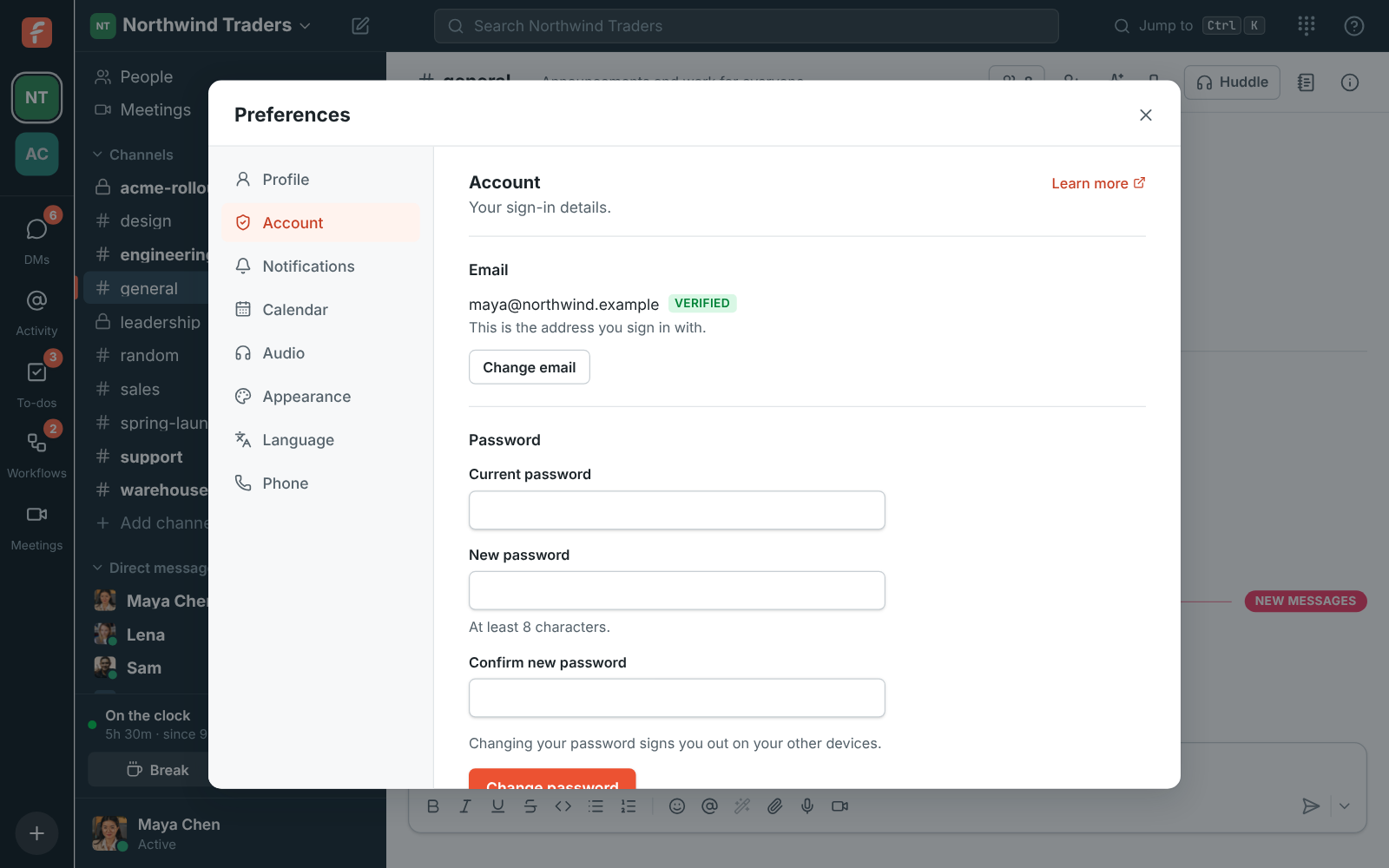
Section titled “Account”- Email: the address you sign in with, marked Verified or Not verified. If it isn’t verified, you can send yourself a new code here.
- Change email: enter the new address and your current password, then the code Freesbe emails to the new address. Your old address is told about the change.
- Password: change it, or set one if you signed up with Google, Microsoft or a passkey. Changing your password signs you out on your other devices.
- Sign out.
The Sign-in tab has Google and Microsoft, Passkeys, an Authenticator app and Approve sign-ins on your phone; Sessions and apps lists where you’re signed in and the apps and AI agents you’ve allowed. See Sign-in and security.
Notifications
Section titled “Notifications”Desktop notifications, sounds and pausing. See Notifications.
Calendar
Section titled “Calendar”Connect your Google or Microsoft calendar, and choose whether your status shows “In a meeting” during meetings. See Connect your calendar. Here you also turn on the Calendar app: your day’s agenda, reminders before meetings and invitations you can answer.
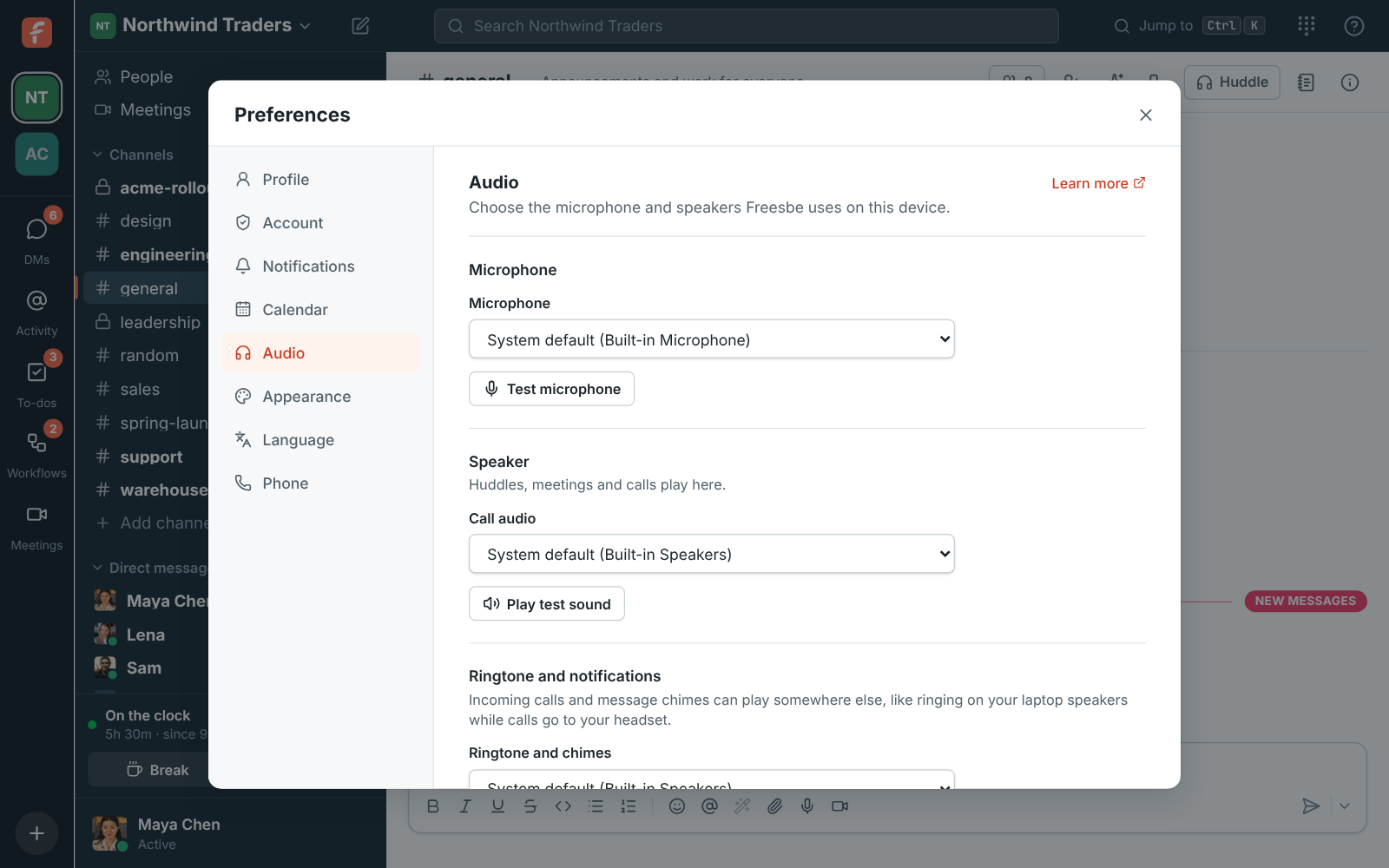
Choose the microphone and speakers Freesbe uses on this device:
-
Microphone: the input device people hear you through in huddles, meetings and calls, with Test microphone beside it. While the test runs, a level bar under the picker moves as you talk: normal speech fills about half of it, and it drops back to nearly empty when you stop, even with a fan or other background hum in the room. If it stays empty while you talk, pick another microphone or check that it isn’t muted on the device. The test hears your microphone the way calls send it: with echo cancellation, automatic volume and the noise cancellation chosen below, in every browser and the desktop app.
-
Noise cancellation, under the microphone, for huddles and meetings:
- Off sends your microphone as it is, for music or a studio microphone in a quiet room.
- Standard is your browser’s own filter, good for steady hum like a fan.
- Advanced AI removes keyboards, fans, dogs and traffic before your sound leaves your computer. It’s a small neural network trained to tell a voice from noise, and it runs on your device, so nothing extra is sent anywhere. It uses a little more battery.
The microphone test hears it too: with Advanced AI on, the bar stays down while you type. You can also change it during a call from Audio and video devices. If Advanced AI ever sends the others silence while you talk, the call switches to Standard by itself and tells you.
-
Call audio: the speaker or headset for huddles, meetings and calls. Play test sound, beside the picker, checks it.
-
Even out voices, on unless you turn it off: quiet people in a call are turned up and loud ones down, so everyone sounds about as loud. Turning it off also limits each person’s own volume, which you change by right-clicking them in a call, to 100%.
-
Ringtone and chimes: where incoming calls ring and message sounds play. Pick your laptop speakers here and your headset for calls, and you’ll hear the ring even with the headset off. Play ringtone, beside the picker, checks it.
-
In calls → Play a sound when someone joins or leaves: a soft rising chime in huddles and meetings when someone else joins, member or guest, and a quieter falling one when they leave. You don’t hear it for yourself, for the people already there when you join, or for someone coming straight back after a dropped connection. Calls of more than 8 people stay quiet, and a few people joining together make one chime. It’s on to start with; turning it on plays the chime.
-
In calls → Play a sound when someone raises a hand: a soft chime in huddles and meetings when someone else raises their hand, at most once every 10 seconds. It’s on to start with; turning it on plays the chime so you know what it sounds like.
If your browser hasn’t shown your devices’ names yet, click Allow microphone access first.
Choices are saved on each device. If a chosen device is unplugged, Freesbe uses your system’s default and switches back when it’s plugged in again. Picking a separate ringtone speaker works in Chrome, Edge and the desktop app; other browsers ring on the default speaker.
Change what’s behind you on camera in huddles and meetings: blur the room, or put a picture there.
Click Preview my camera to see yourself as others will, then pick under it:
- No effect sends your camera as it is.
- Slight blur softens the room behind you; Blur hides it more.
- A moving background, marked ▶ on its tile, that plays on a loop behind you: Rain on a window, Snow, Forest or a Busy office. If the motion distracts you, click Pause the background under the tiles to hold it still; Play the background starts it again.
- A photo of a place to sit in front of: Open office, Coworking space, Meeting room, Home office, Kitchen, Living room, Bookshelf, Café, Loft, Library, Lobby or Winter cabin.
- Add your own picture (the last tile) uses a JPEG, PNG or WebP from your computer. Freesbe keeps your last three on this device; hover over one and click × to remove it.
It all happens on your device: a small AI model finds you in each frame, and the call sends the finished video, so nothing extra goes anywhere, it takes no more bandwidth, and nobody else needs anything to see it. The model runs on your computer’s graphics card, on every frame, and the edge it finds is then matched to the real edges in the picture, so your hair, ears and shoulders stay sharp and a bright window beside you stays behind you instead of showing through. The blur leaves you out of it, so there’s no glow of you around you. The first time you pick an effect, Freesbe downloads the model (a few megabytes, kept for next time), which takes a moment.
Where the browser has WebGPU (current Chrome, Edge, Safari and Firefox on most computers from the last few years), a second, larger model looks at the whole frame a few times a second and corrects the first: a chair, shelf, plant or window right behind your head that the first took for part of you goes back into the room, and your hair, hands and headset stay in. It downloads about 20 MB the first time, kept for next time; until then, or without WebGPU, the first model works alone. In the Mac app, the Mac’s own person detection does this instead, on nearly every frame, with nothing to download. It uses more of your computer’s power than a plain camera, and No effect is the lightest. Nothing is loaded or run until you pick an effect, so Freesbe isn’t any slower for people who don’t use one.
On a computer that’s too weak (two processor cores or fewer, or 2 GB of memory or less), backgrounds aren’t offered. If one can’t keep up during a call, Freesbe puts your camera back to normal, tells you, and stops offering backgrounds on that computer.
Your choice is saved on each device and used every time you turn on your camera. You can change it or turn it off during a call, without leaving: Backgrounds and effects in a meeting’s controls or on your own tile (In the call), and in the header of the huddle video (Keep the call in view). Guests can pick one before they join a meeting (Joining).
Backgrounds work in Chrome, Edge, Firefox, Safari and the desktop app. The Freesbe phone app doesn’t change your background yet.
Appearance
Section titled “Appearance”Freesbe comes in a light and a dark theme. Choose System (match your device), Light or Dark. The choice is saved on each device, so your laptop can be dark while your work PC stays light.
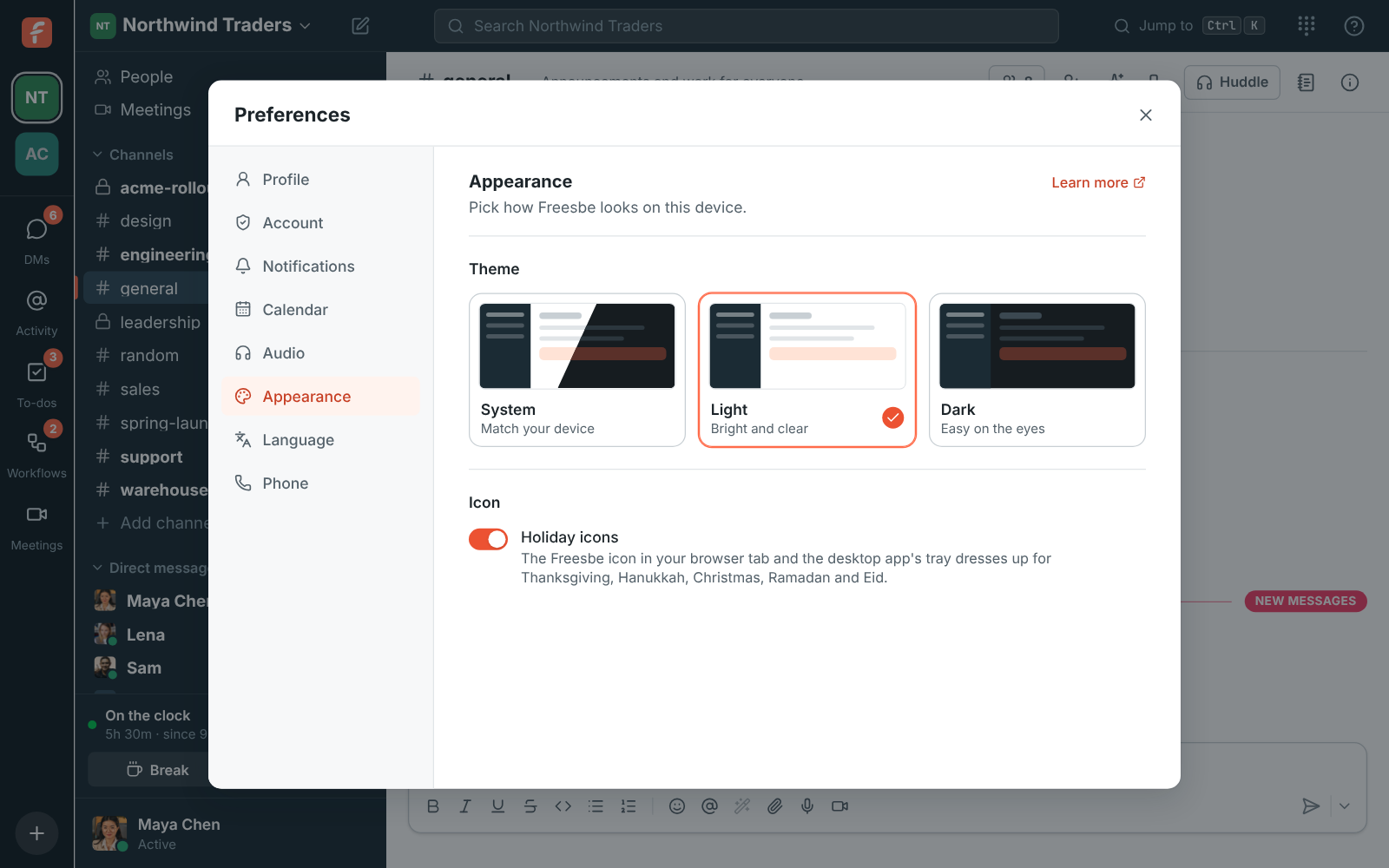
System is the default. It follows your computer’s or phone’s light or dark setting, and switches the moment that changes, including when your computer goes dark automatically at sunset. The sidebar stays dark teal in both themes; the messages, dialogs and menus change.
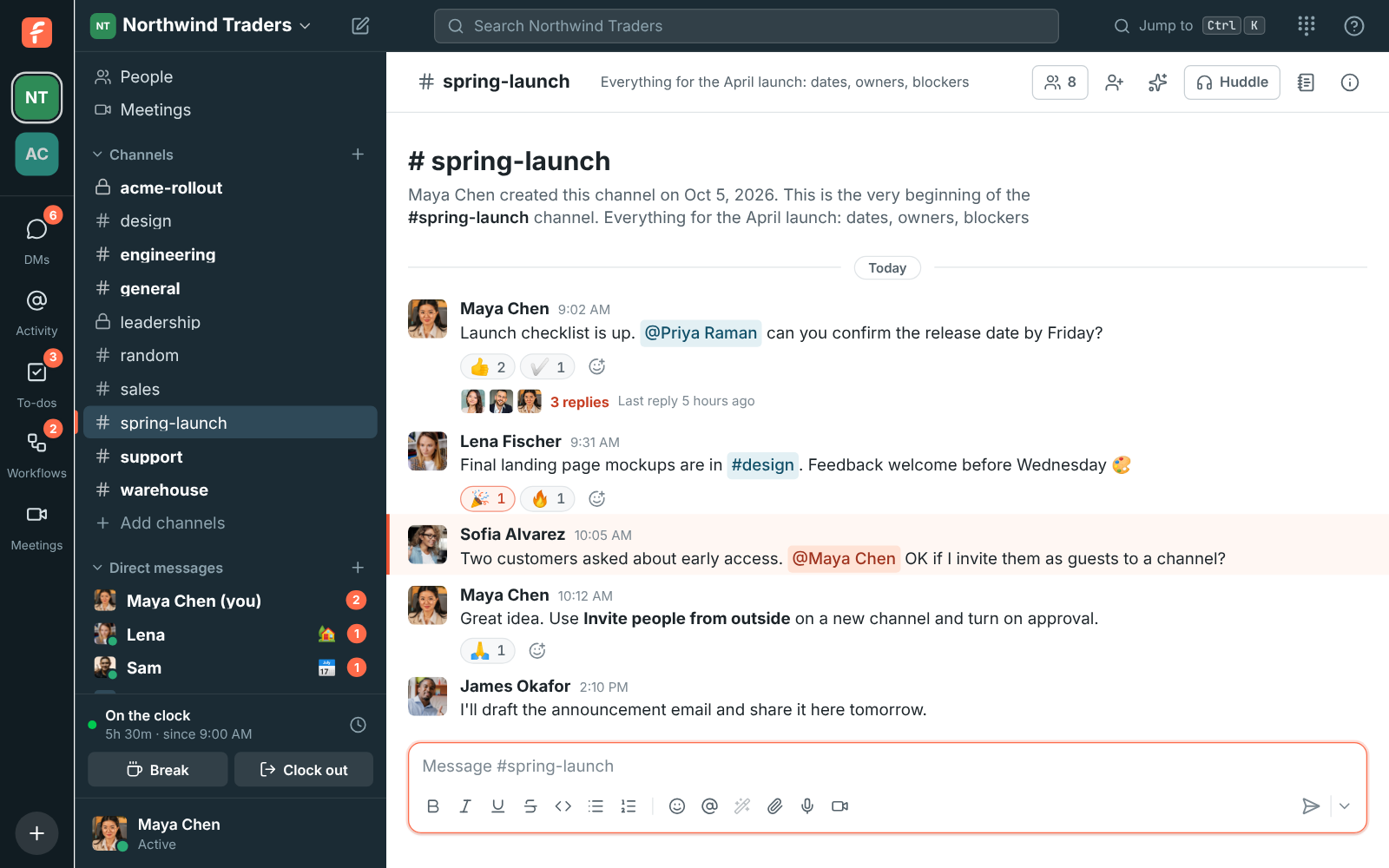
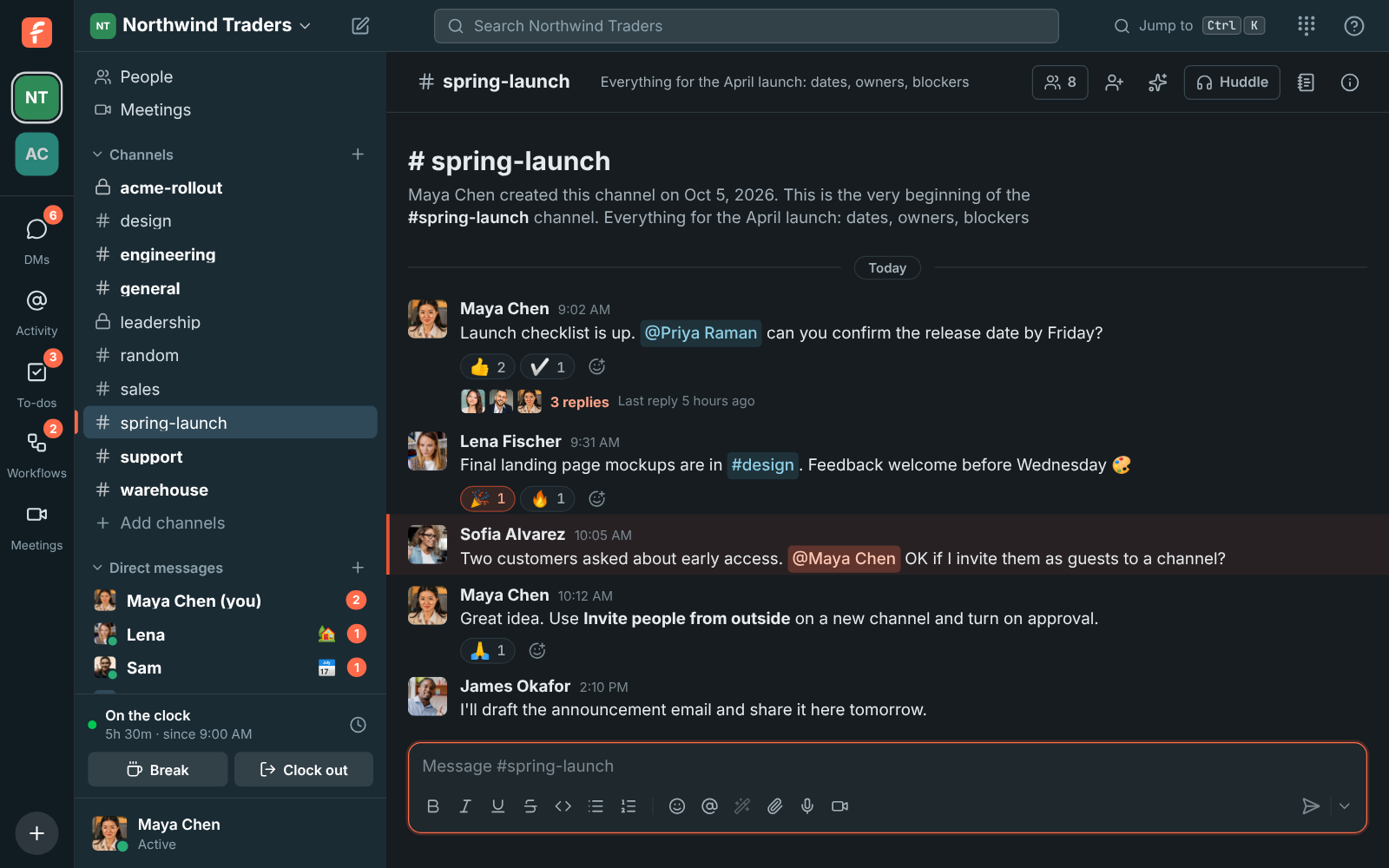
In the desktop app, the window buttons follow the theme too, and on a Mac so do the right-click and spelling menus and the app’s dialog boxes, even when your Mac is set to the other look.
Holiday icons
Section titled “Holiday icons”The Freesbe icon dresses up for the holidays: an autumn leaf for Thanksgiving week, a gold menorah for the eight days of Hanukkah, a snowflake through December for Christmas, and a gold crescent moon for Ramadan and the two Eids. You’ll see it in your browser tab, on freesbe.net, and in the desktop app’s tray (the menu bar on a Mac) and window icon. The unread and mention dots work as usual.

| Icon | When |
|---|---|
| Thanksgiving | Monday to Sunday of US Thanksgiving week |
| Hanukkah | From the evening of the first candle to the eighth day |
| Christmas | December 1 to 26. Hanukkah takes its own days, except December 24 and 25 |
| Ramadan | The whole month of Ramadan |
| Eid | The three days of Eid al-Fitr and the four days of Eid al-Adha |
The icons change at midnight on your own computer’s clock. Hanukkah’s dates come from the Hebrew calendar and Ramadan’s and Eid’s from the Islamic (Umm al-Qura) calendar, so they’re right every year. Where the new moon is sighted locally, Ramadan and Eid can start a day earlier or later than the icon. Don’t want them? Turn off Holiday icons under Appearance. The desktop app follows the setting from version 0.1.5.
Language
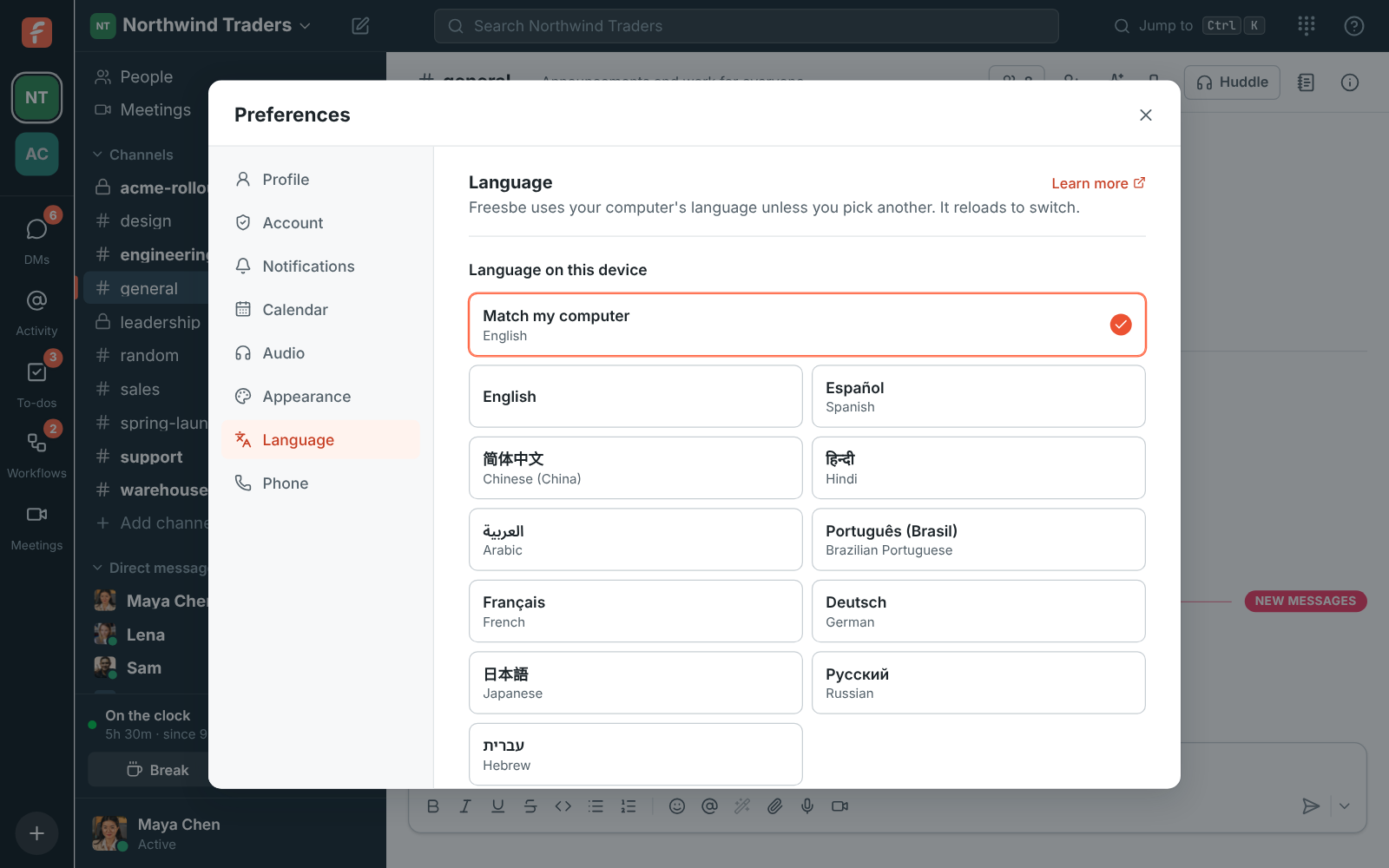
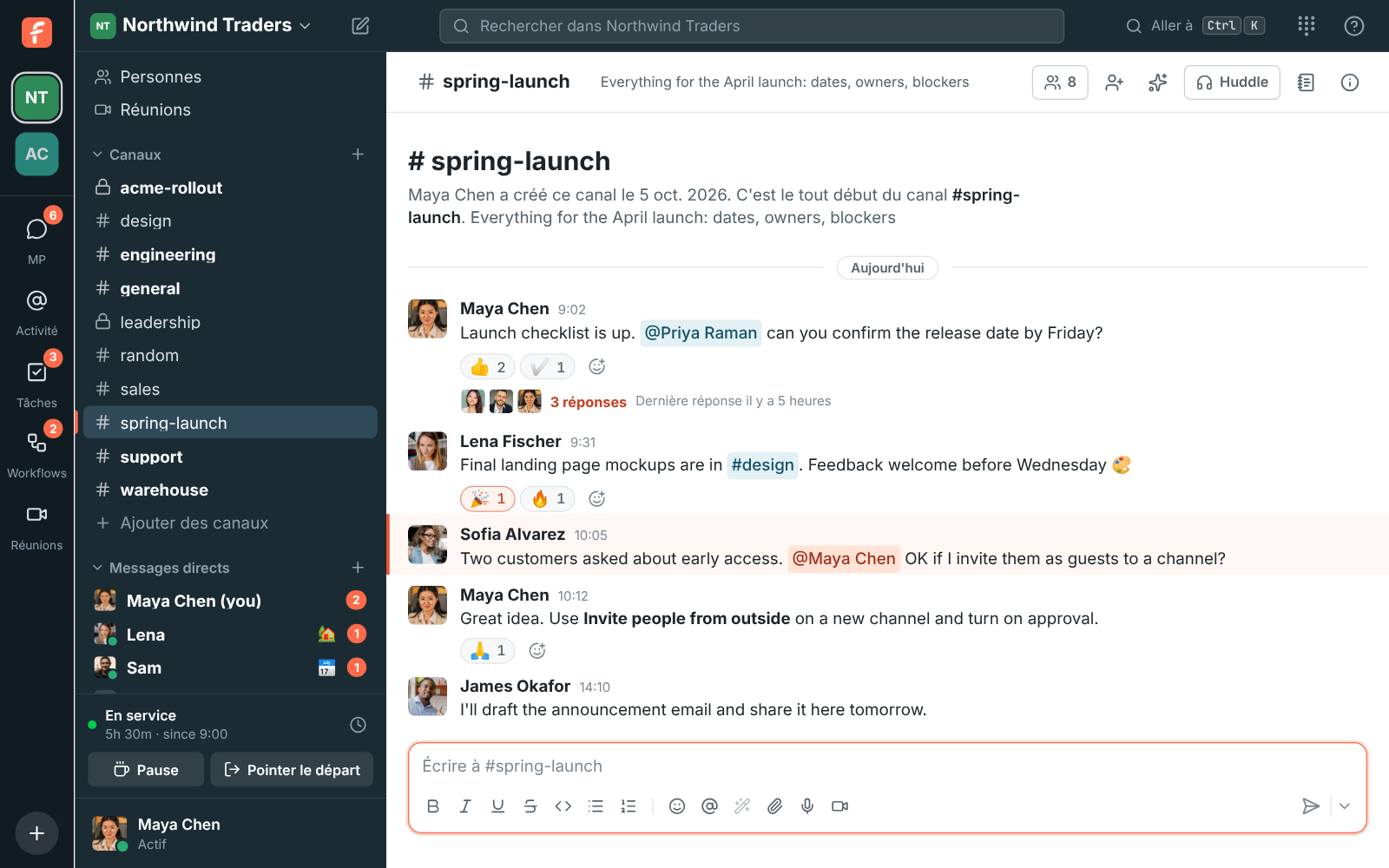
Section titled “Language”Freesbe follows your computer’s language (your browser’s language on the web). To use a different one, pick it under Language on this device, or choose Match my computer to go back. Freesbe reloads to switch.
Freesbe supports 25 languages, including right-to-left languages like Hebrew and Arabic: English, Español (Spanish), 简体中文 (Chinese, simplified), 繁體中文 (Chinese, traditional), हिन्दी (Hindi), العربية (Arabic), Português (Brasil), Français (French), Deutsch (German), 日本語 (Japanese), Русский (Russian), עברית (Hebrew), Italiano (Italian), Nederlands (Dutch), Polski (Polish), Türkçe (Turkish), 한국어 (Korean), Bahasa Indonesia (Indonesian), Bahasa Melayu (Malay), Tiếng Việt (Vietnamese), ไทย (Thai), Українська (Ukrainian), Svenska (Swedish), Čeština (Czech) and Română (Romanian).
If your computer uses a language that isn’t on the list, Freesbe uses English. A close relative counts: Portuguese from Portugal gets Brazilian Portuguese, and Chinese from Hong Kong or Macau gets traditional Chinese.
- Right-to-left: in Hebrew and Arabic the whole app flips, with the sidebar on the right. Each message lines up by its own text, so English and Hebrew messages sit side by side correctly.
- Dates and times use the format of the language you choose.
- Emails you ask for, such as sign-in codes, come in your language. Invitations come in the language of the person who sends them.
- In the desktop app, the menus, tray (menu bar on a Mac) and jump list follow the same choice.
- The choice is saved on each device, so your phone’s browser and your laptop can differ.
- Messages stay in the language they were written in. To read one in your language, use Translate.
Desktop app
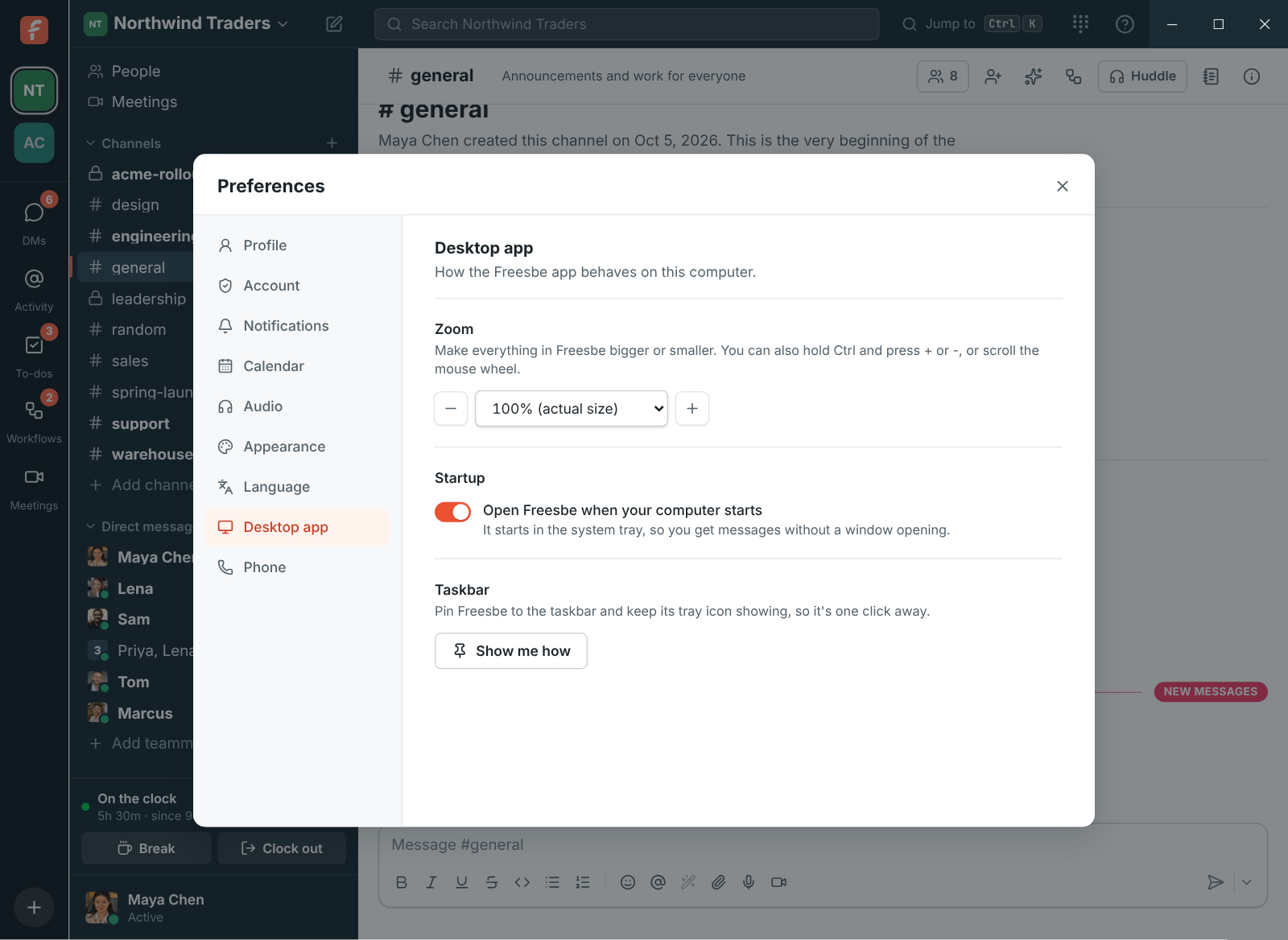
Section titled “Desktop app”Only in the desktop app.
- Zoom makes everything bigger or smaller, from 67% to 200%. Use − and +, pick a level, or Reset to go back to 100%. Ctrl (⌘ on a Mac) with +, - and 0, or with the mouse wheel, does the same anywhere in the app. See Zoom in and out.
- On macOS and Windows, turn on Open Freesbe when your computer starts to have Freesbe start in the tray (the menu bar on a Mac) when you sign in to your computer, without a window opening.
Your SIP credentials for a desk phone or softphone. See Phone.
Answers come from the Freesbe guides and are written by AI, so check the linked guide before relying on one. Please don't include personal details such as emails or passwords.