
Guests
Guests are people from outside your organization, like clients, contractors or partners, who work with you in specific channels. They only see what they’re invited into.
Invite a guest
Section titled “Invite a guest”Anyone in a channel (except guests) can invite guests into it.
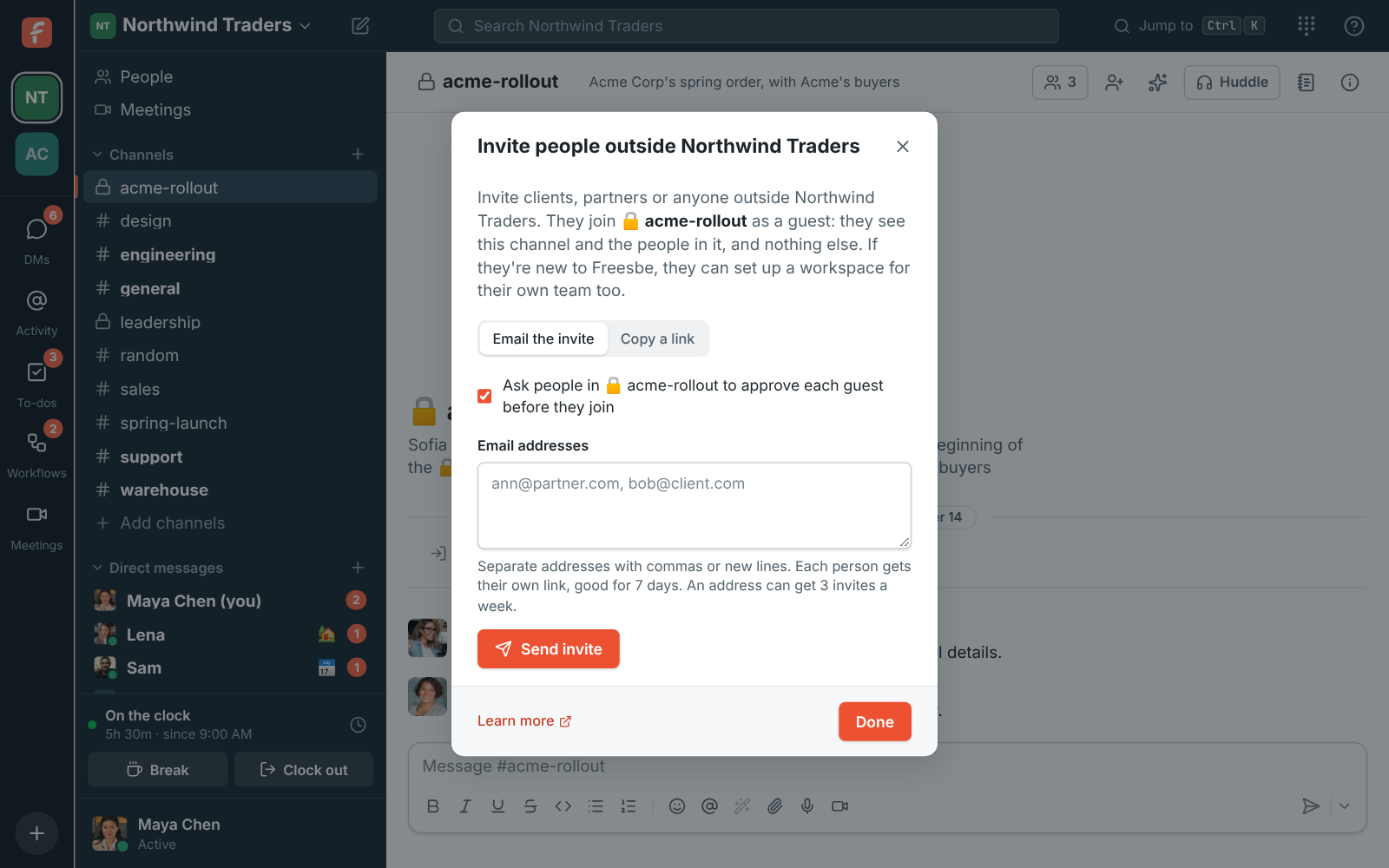
- Open the channel and click Invite people from outside in its header.
- Choose Email the invite and enter addresses, or Copy a link to share yourself.
- Leave Ask people in #channel to approve each guest before they join on if you want someone to check each person first.
Emailed guest invites are single-use and last 7 days. A guest link lasts 7 days too.
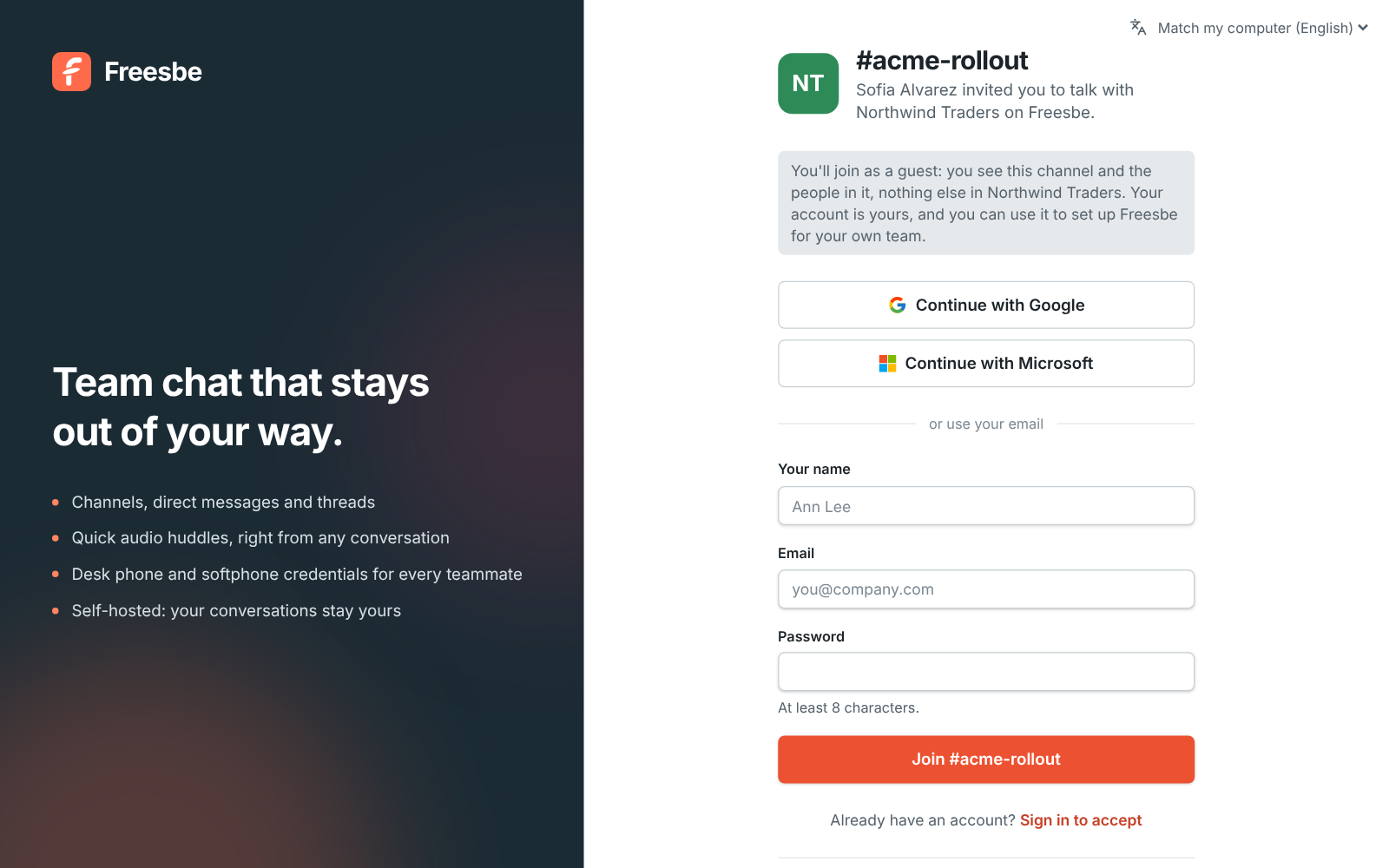
The guest sees which channel they’re joining, who invited them, and that they’ll only see that channel:
Approving guests
Section titled “Approving guests”With approval on, a guest who accepts the invite has an account but can’t get in yet. The channel shows “Name (email) wants to join as a guest, invited by …” with Let in and Decline. Anyone in the channel who isn’t a guest can answer. The guest’s page moves on by itself once someone lets them in, and they get an email too.
What guests can do
Section titled “What guests can do”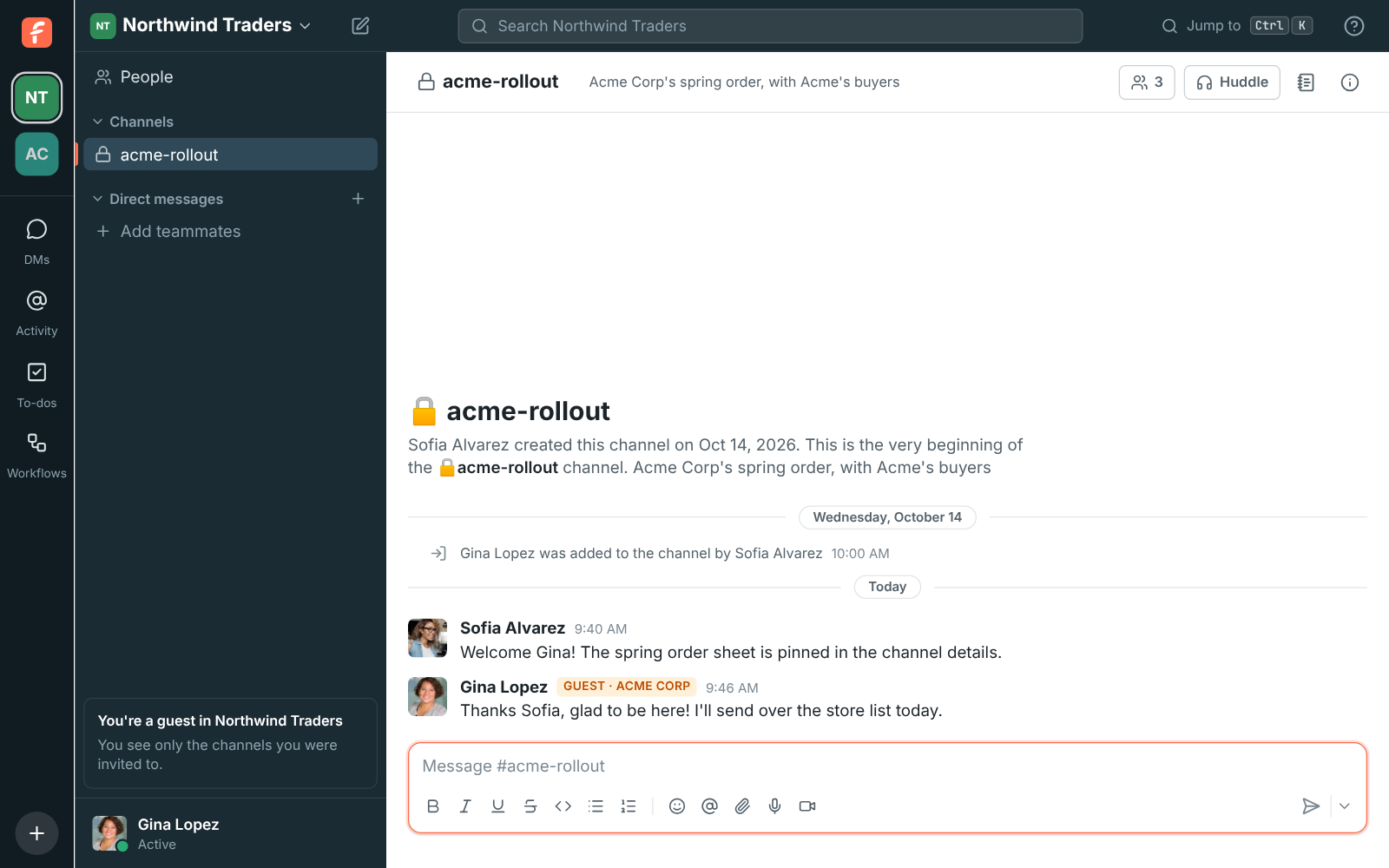
Guests:
- See only the channels they were invited to, and only the people in those channels.
- Can post, reply in threads, react, share files and join huddles in those channels. Out of the box they can’t share programs and scripts; admins choose in File types.
- Can send DMs to the people they share a channel with.
- Can’t browse or join other channels, see the rest of the workspace’s people, or invite anyone.
- See You’re a guest in Workspace in the sidebar, and the workspace shows “(guest)” in their workspace list.
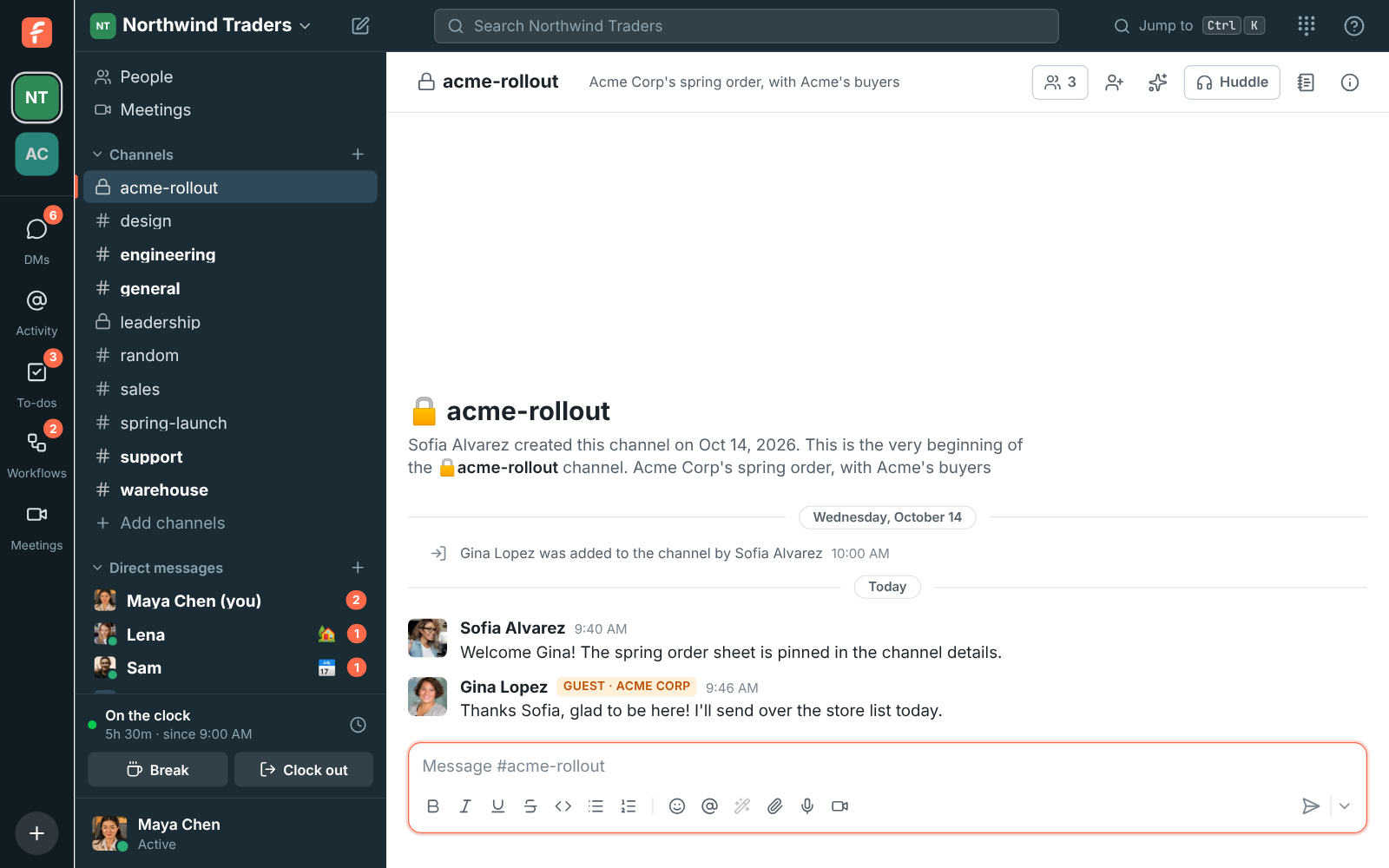
Everyone else sees a Guest badge next to a guest’s name:
Promote or remove a guest
Section titled “Promote or remove a guest”In Workspace settings → People → Members, change a guest’s role to Member or Admin to give them the full workspace, or Deactivate them to remove their access. Removing a guest from a private channel also takes them out of its huddle.
Guests with their own team
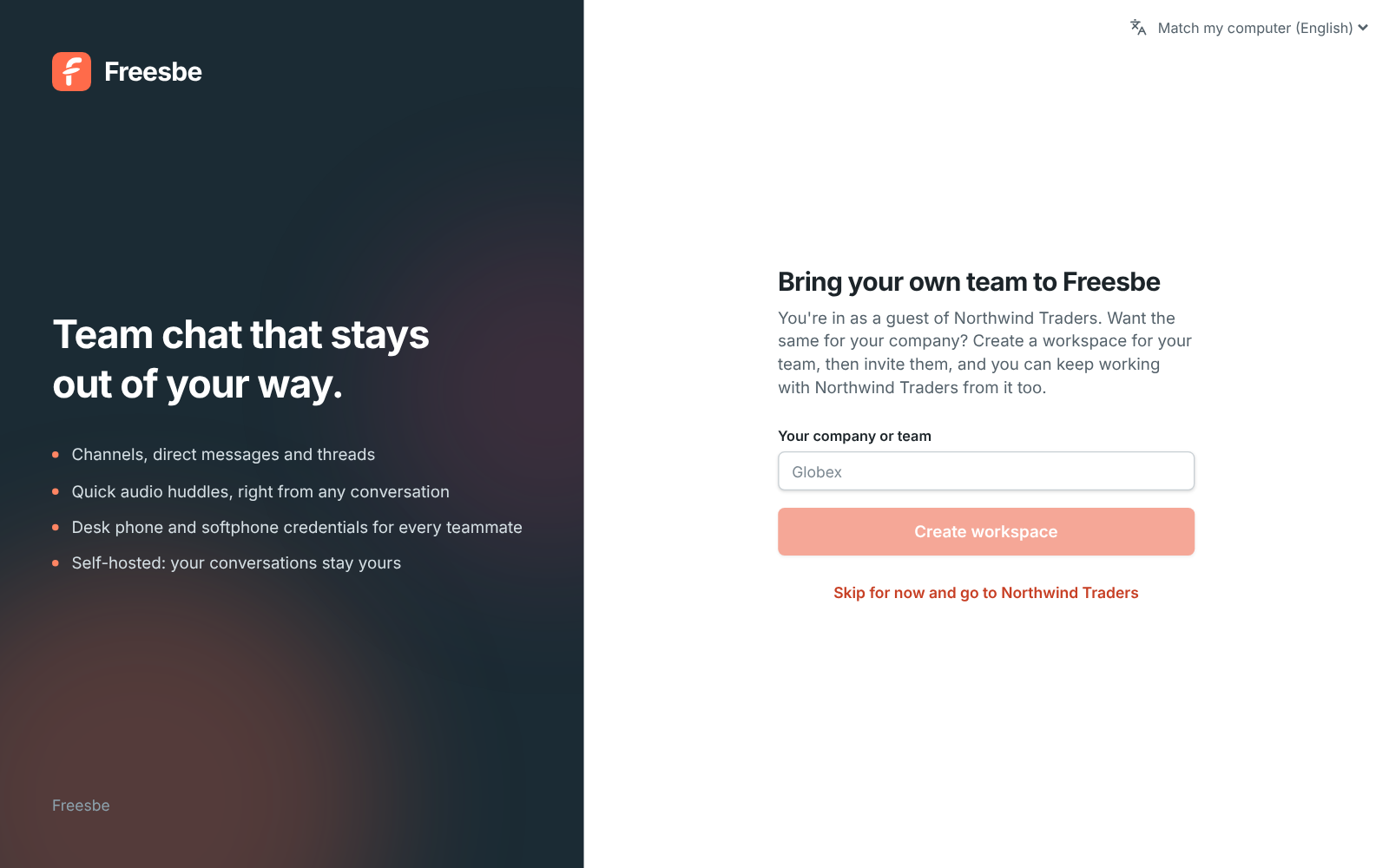
Section titled “Guests with their own team”A guest can set up Freesbe for their own company from Set up Freesbe for your own team in the sidebar callout. They become the owner of the new workspace and can keep working with you as a guest in yours.
Answers come from the Freesbe guides and are written by AI, so check the linked guide before relying on one. Please don't include personal details such as emails or passwords.