
Remote control
During a huddle, you can ask to control a screen someone is sharing. Once they allow it, your mouse and keyboard work their computer: you can click, type, scroll and drag as if you were sitting at it. It’s made for support, onboarding and showing someone where a setting is.
Remote control is off until a workspace admin turns it on, and the person sharing has to allow it every single time.
What you need
Section titled “What you need”- The person being helped shares their screen from the Freesbe desktop app for Mac, Windows or Linux, and shares their entire screen, not a single window. A web browser can show its screen but can’t let anyone control it.
- The person helping can use the desktop app or a browser.
- An admin has turned on Remote control in Workspace settings → Security & compliance → Remote control.
- Guests can be helped, but can’t control anyone else’s screen.
Ask to control a screen
Section titled “Ask to control a screen”-
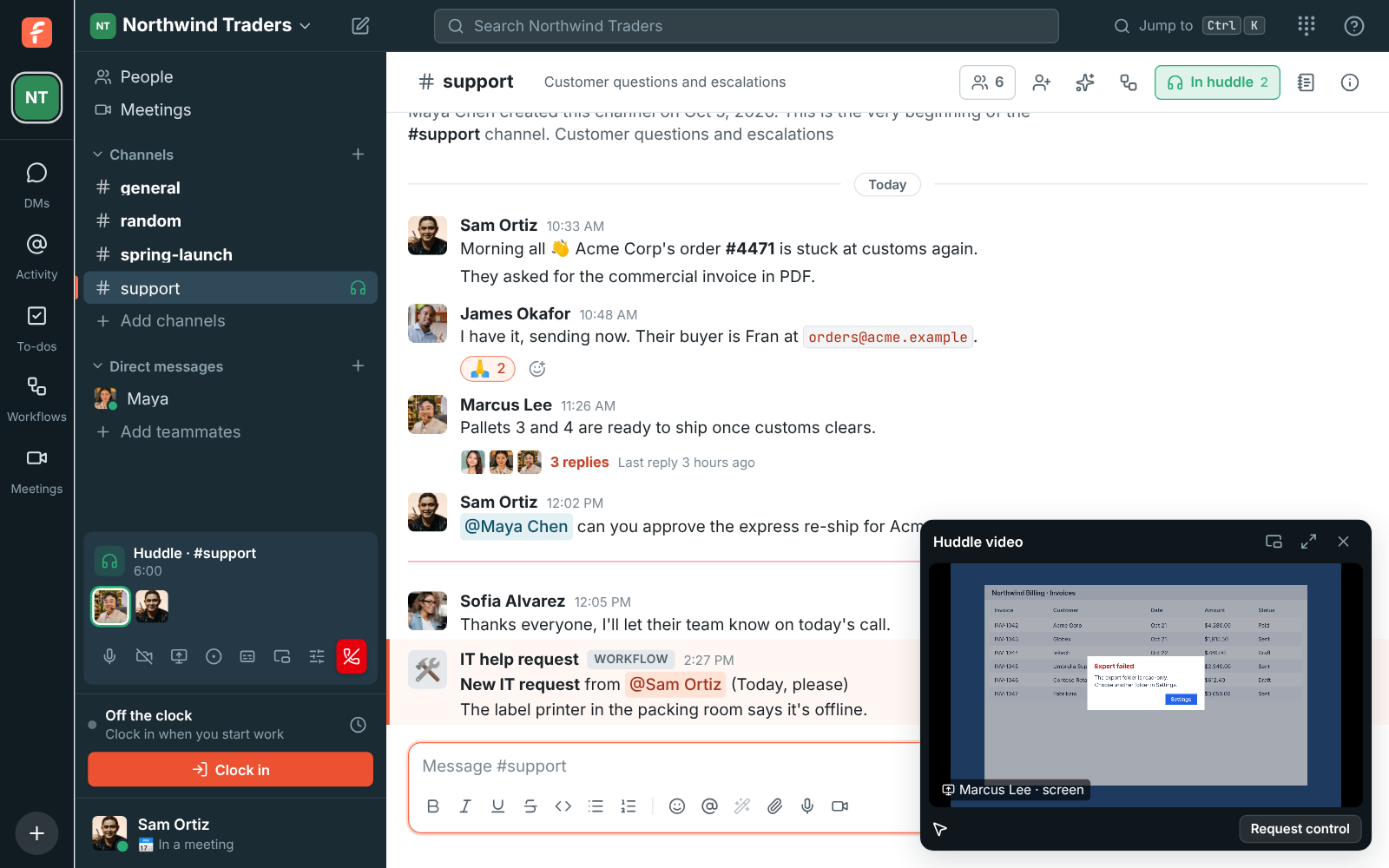
Join the huddle. When someone shares their screen, it takes the big spot in the huddle video.
-
Click Request control under their screen.
-
Wait for them to answer. The bar under the screen says Waiting for … to allow control, and Cancel takes the request back. A request nobody answers goes away after a minute.
When they allow it, the huddle video gets bigger and a red bar says You’re controlling …’s screen. Click their screen once so it gets your keyboard, then work as usual.
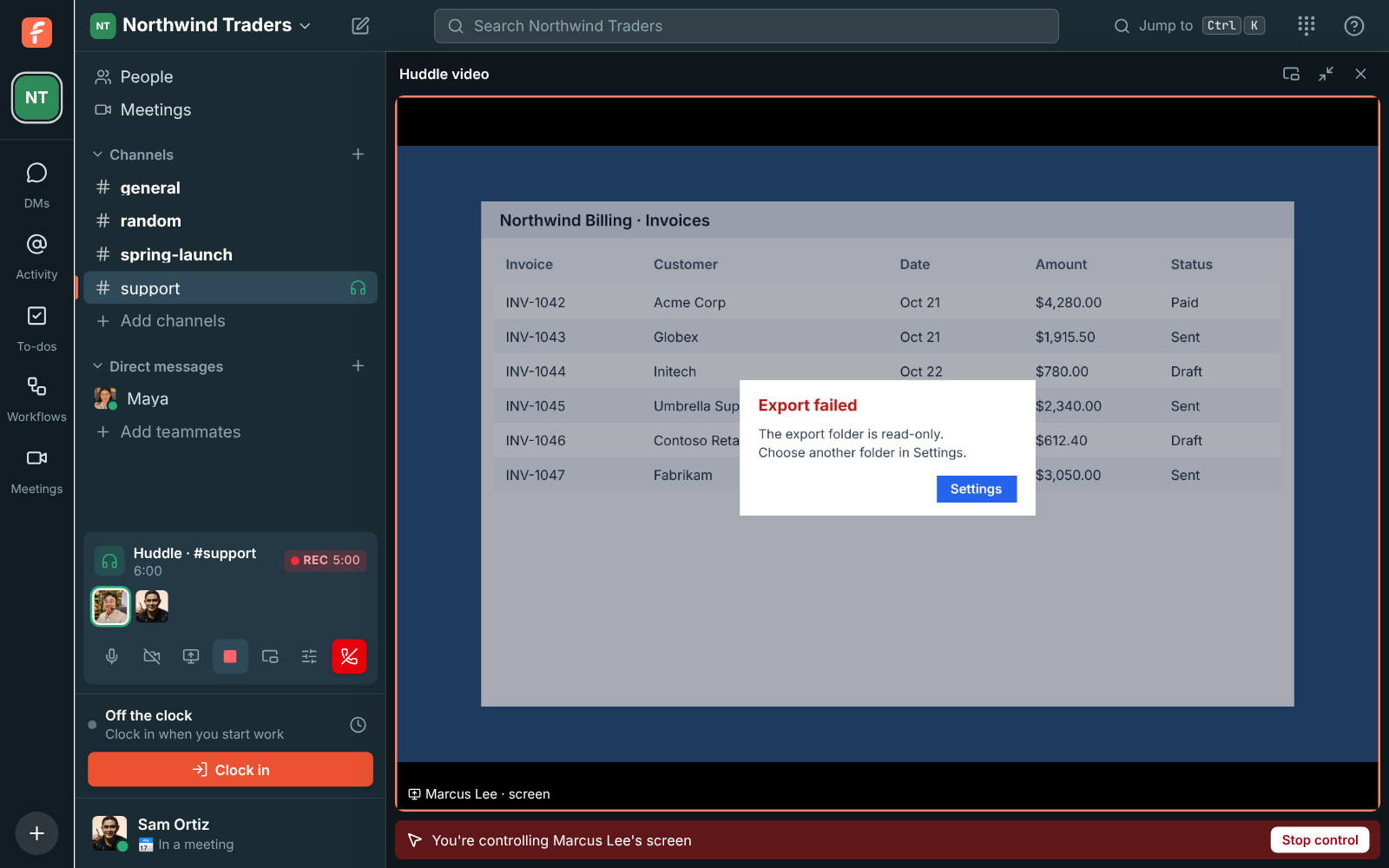
- Everything you type goes to their computer, including Esc and shortcuts. Shortcuts are translated between Mac and PC: Cmd+C on your Mac is Ctrl+C on their Windows computer, and the other way round.
- Typing works with any keyboard layout, and shortcuts work even when your layout isn’t Latin (Hebrew, Arabic, Russian…).
- Click Stop control when you’re done.
When someone asks to control your screen
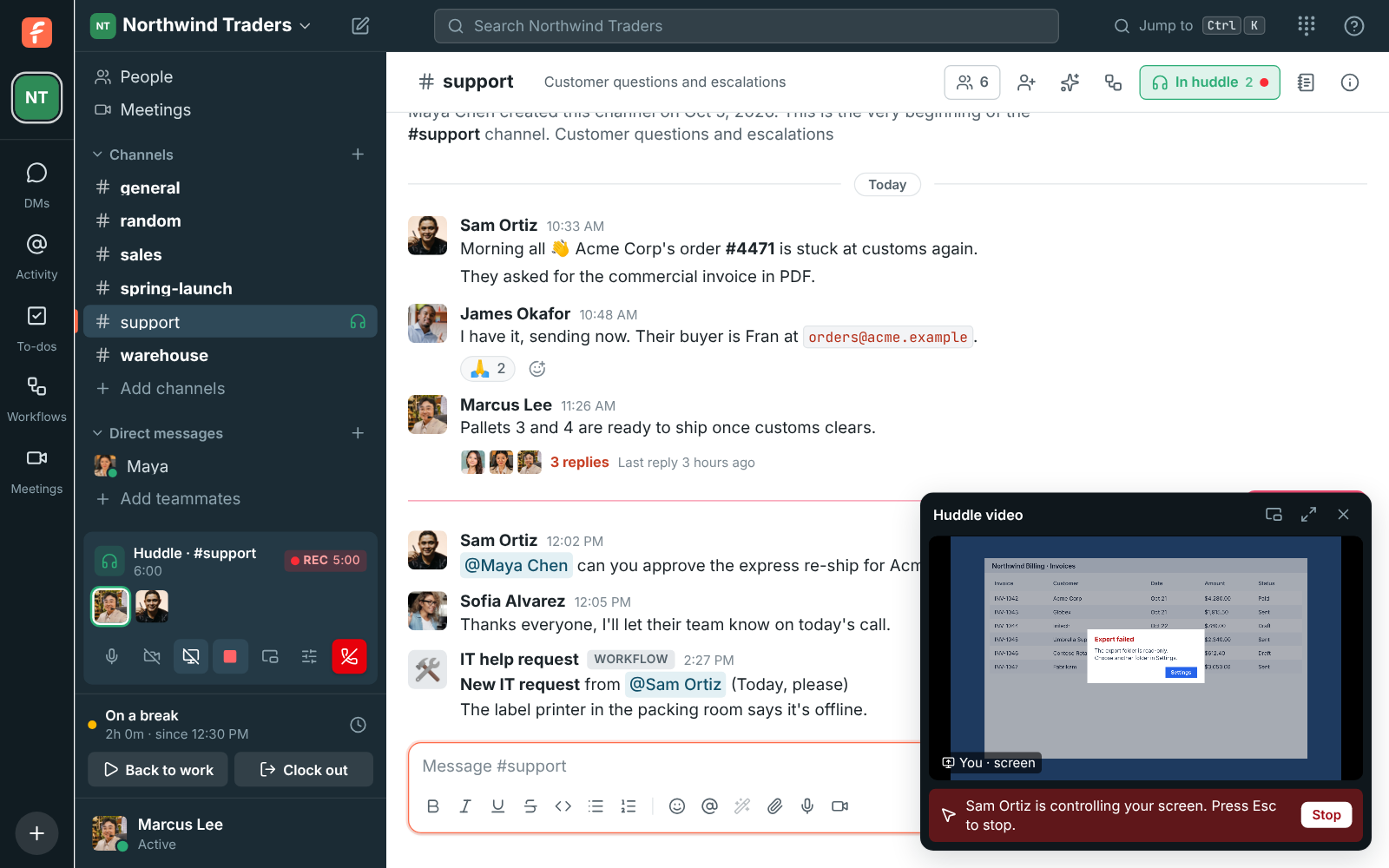
Section titled “When someone asks to control your screen”Freesbe asks you in a window of its own: Sam Ortiz wants to control your screen. It’s a system window, so the person asking can’t click it for you. Click Allow to let them in, or Don’t allow. While they’re in control:
- A red bar at the top of your screen says who is controlling it.
- Press Esc to take back control at once, or click Stop on the bar or under the huddle video. Stopping your screen share or leaving the huddle ends it too.
- You can still use your own mouse and keyboard.

On a Mac: allow Accessibility once
Section titled “On a Mac: allow Accessibility once”macOS only lets an app use the mouse and keyboard for someone else with Accessibility permission. The first time someone asks, Freesbe opens System Settings → Privacy & Security → Accessibility. Turn on Freesbe, then ask them to request control again. (Sharing your screen already needed Screen Recording permission.)
What it can’t do
Section titled “What it can’t do”- Admin prompts on Windows. Windows doesn’t let any app click the “Do you want to allow this app to make changes?” (UAC) prompt or type into the sign-in screen. The person being helped clicks those themselves.
- Linux. Control works on X11 desktops; on Wayland, it only reaches apps running through XWayland. Typing letters other than English ones isn’t supported on Linux yet.
- Phones and tablets. In huddles, only computers with the desktop app can be controlled. Android phones can be controlled in support sessions.
Who sees what
Section titled “Who sees what”- Everyone in the huddle sees who is controlling whose screen.
- The conversation gets a line saying who started controlling whose screen.
- Recording: if your workspace allows huddle recordings, Freesbe starts recording when control begins (unless the huddle is already being recorded), so every session can be reviewed later. Everyone hears the recording tone as usual.
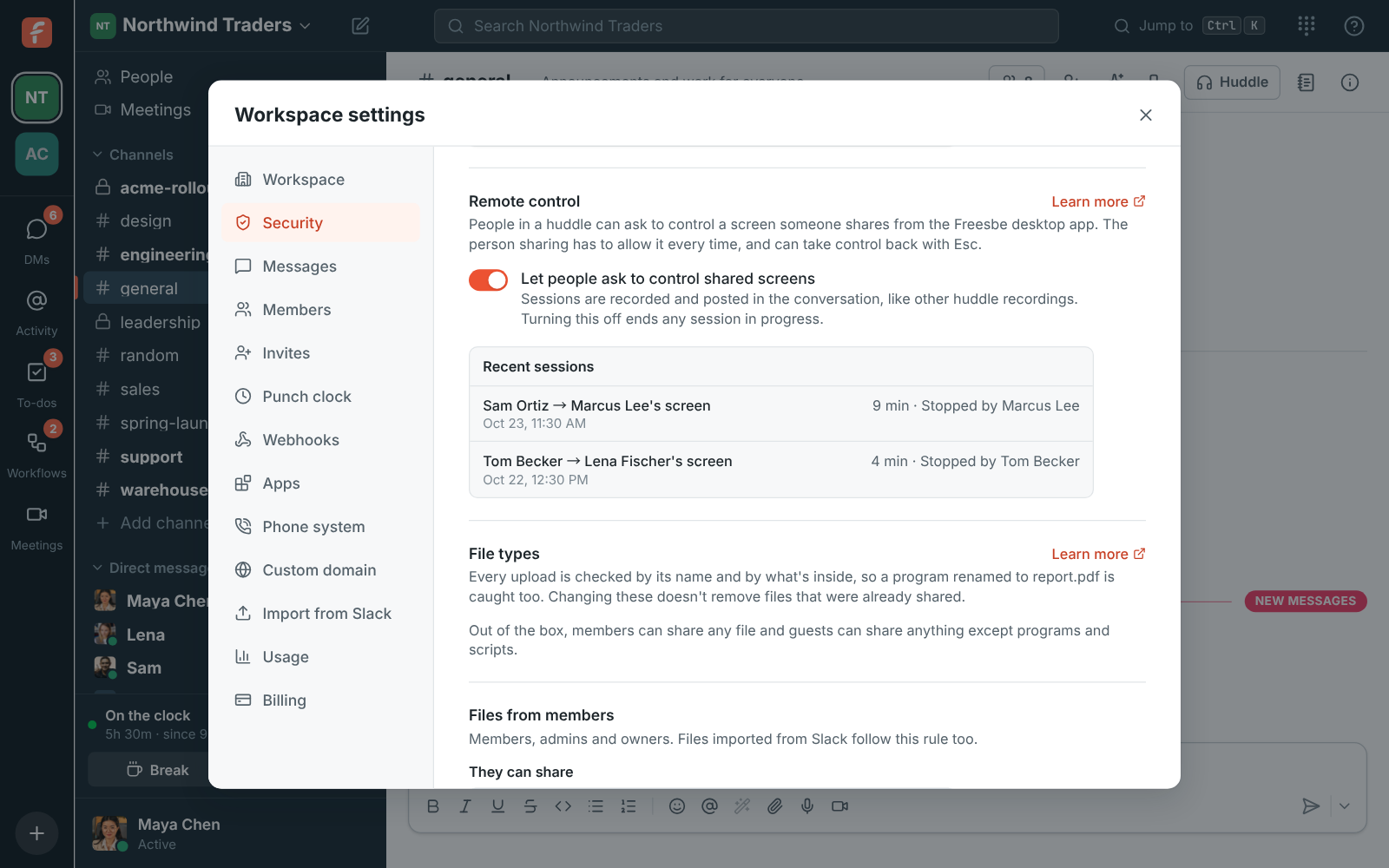
- Admins see a log of every request: who asked, whose screen, whether it was allowed, how long it lasted, who stopped it, and whether it was recorded.
Helping customers
Section titled “Helping customers”To help a customer, start a support session: one click gives you a one-hour link and a code they can type in. They join without an account, and the page they open explains how to share their screen and allow control from the desktop app.
In a support session the customer’s app names you and your company before they allow it, warns them to allow it only if they asked you for help, and the log keeps the exact words they agreed to. See What the customer is asked.
You can also invite a customer as a guest to a support channel and help them in a huddle there.
For admins
Section titled “For admins”Turn it on in Workspace settings → Security & compliance → Remote control. Turning it off ends any session that is running. The same section shows the 100 most recent sessions.
Remote control is part of the Corporate and Enterprise plans. On other plans the switch is greyed out and says it requires the Corporate plan, with a link to upgrade.
Answers come from the Freesbe guides and are written by AI, so check the linked guide before relying on one. Please don't include personal details such as emails or passwords.