
I'm not getting notifications
Messages arrive in Freesbe, but you aren’t alerted: no pop-up, no sound, or nothing on your phone.
Fix it
Section titled “Fix it”Work down the list. Most people are sorted by the first two steps.
-
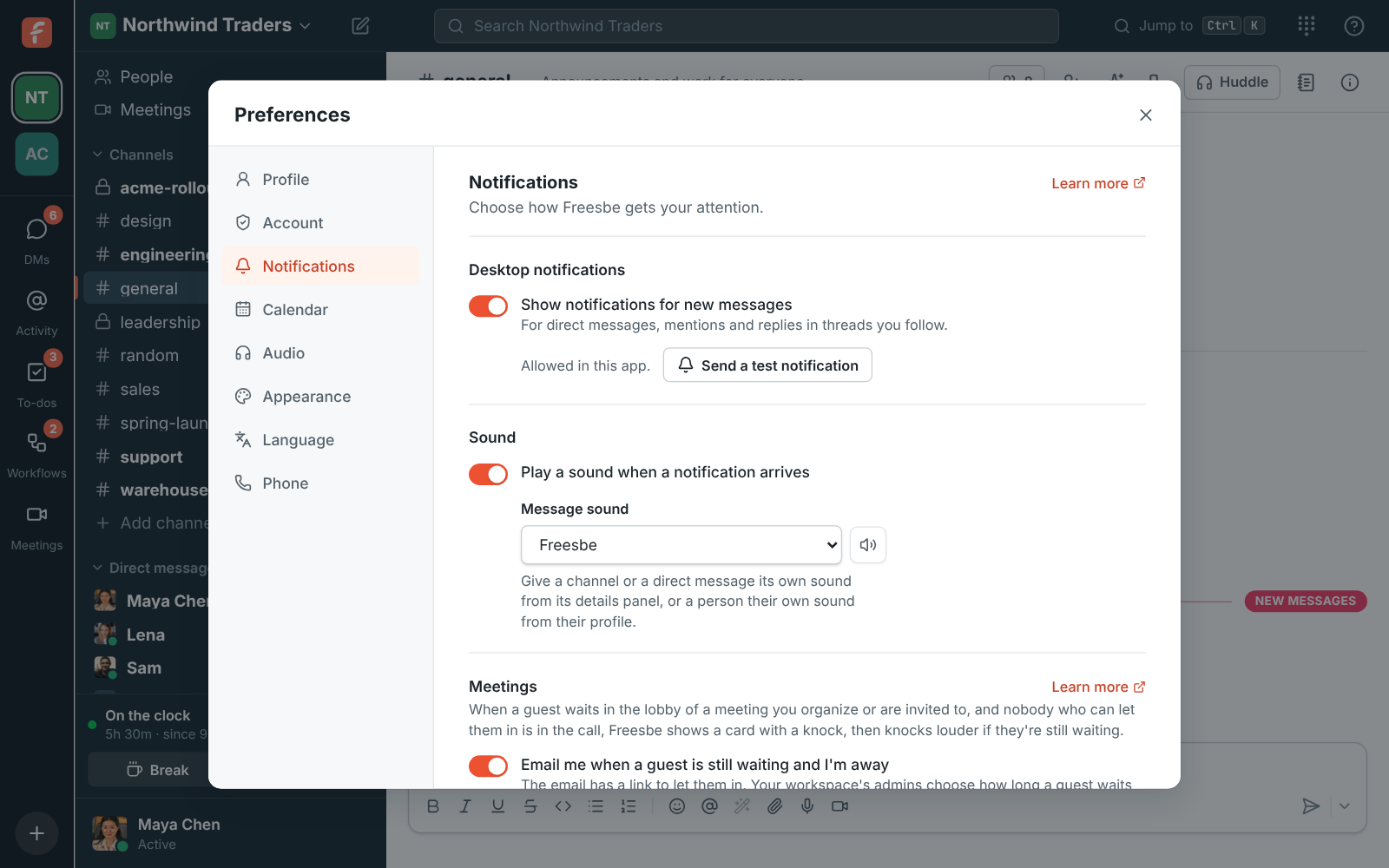
Turn notifications on in Freesbe. Open Preferences → Notifications, check Show notifications for new messages is on, and click Send a test notification.
-
Allow them on your device. If Freesbe says notifications are blocked, allow them for app.freesbe.net in your browser’s site settings, or for Freesbe in your computer’s notification settings. Focus or Do Not Disturb can hide them too.
-
Check you haven’t paused them. Your account menu says Resume notifications while they’re paused.
-
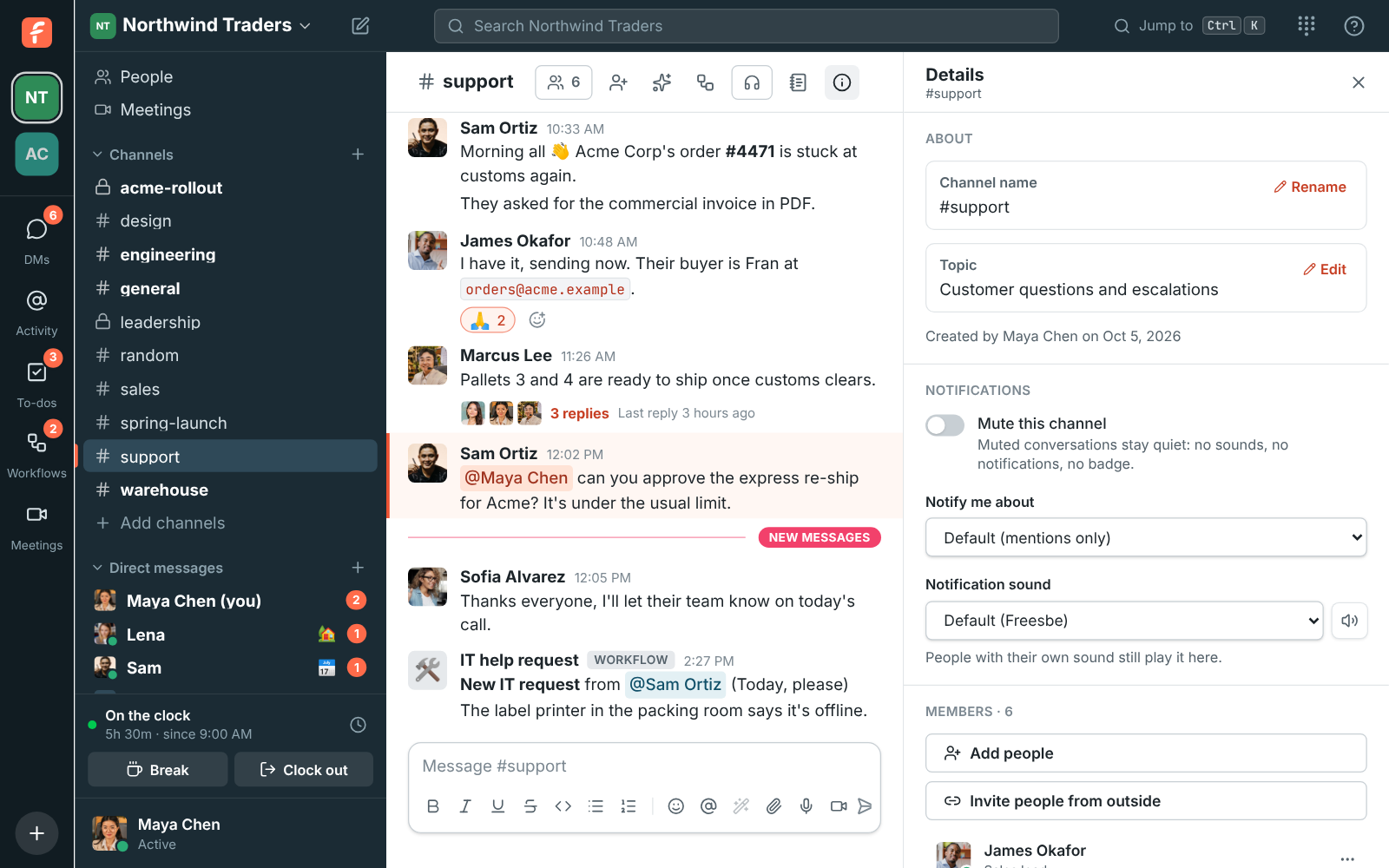
Check the conversation isn’t muted. Open the channel’s details and look at Notifications. Channels only notify you about mentions by default; choose Every message if you want them all.
-
Keep Freesbe running. In a browser, notifications only arrive while a Freesbe tab is open. The desktop app keeps notifying with its window closed, and the mobile app covers you when you’re away from your computer.
Why one device stays quiet
Section titled “Why one device stays quiet”If Freesbe is open in several places, only one of them alerts you: the one you used last, or the desktop app once you’ve been idle everywhere. Your phone gets a notification only while you aren’t active in Freesbe anywhere else. So a quiet phone while you’re at your computer is expected. Incoming huddle calls are the exception: they ring everywhere. See Using several devices.
Still stuck?
Section titled “Still stuck?”Send a test notification and note what Freesbe says, then email support@freesbe.net with that and which device and browser you use.
Answers come from the Freesbe guides and are written by AI, so check the linked guide before relying on one. Please don't include personal details such as emails or passwords.